Authoring tool
nectar LMS offers an authoring tool for creating courses (WBTs) with text, quizzes and videos within the LMS. Starting with nectar LMS version 5.0.0, the authoring tool is available upon request and can be licensed separately if you are interested. For more information, please contact us at nectar-support@fkc-online.com.
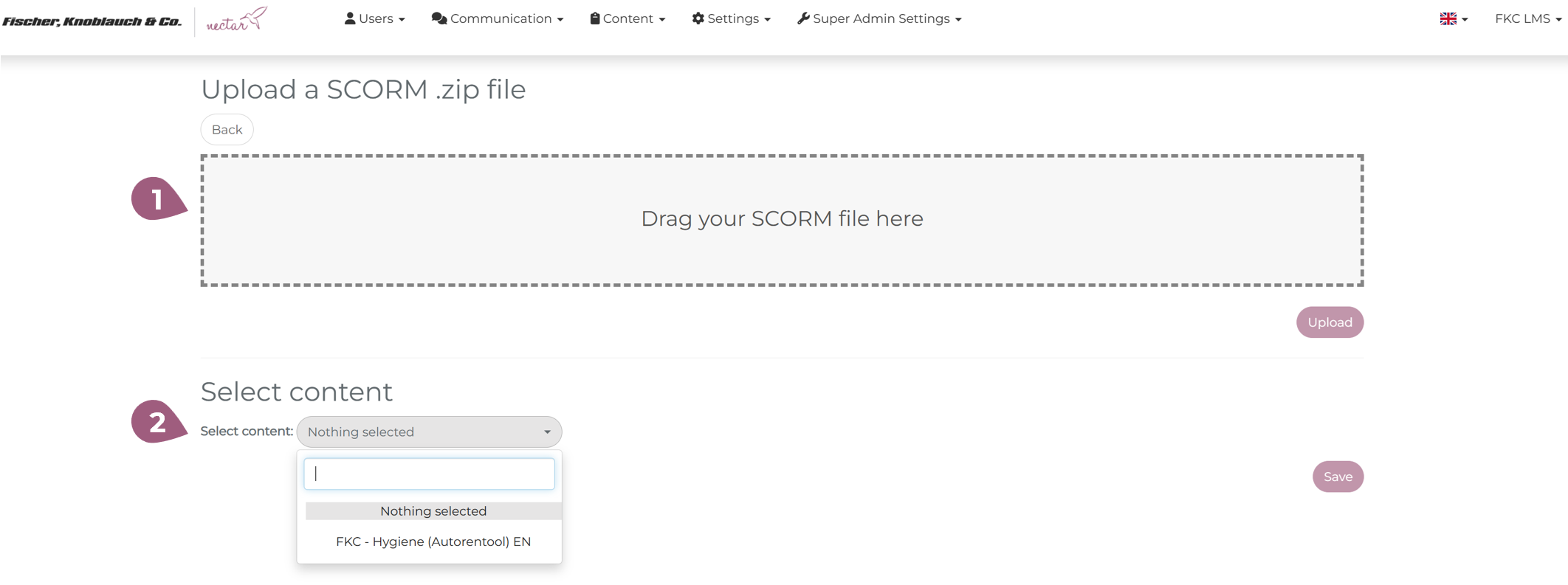
The courses can be downloaded as SCORM files and then made directly available to learners within the LMS. When creating a new course you can upload a SCORM file (1) or select one SCORM file, which was created with the authoring tool, directly from the LMS (2):
The nectar LMS documents which administrators created a course using the authoring tool and what changes were made. The authoring tool allows you to create courses in different languages and copy individual courses.
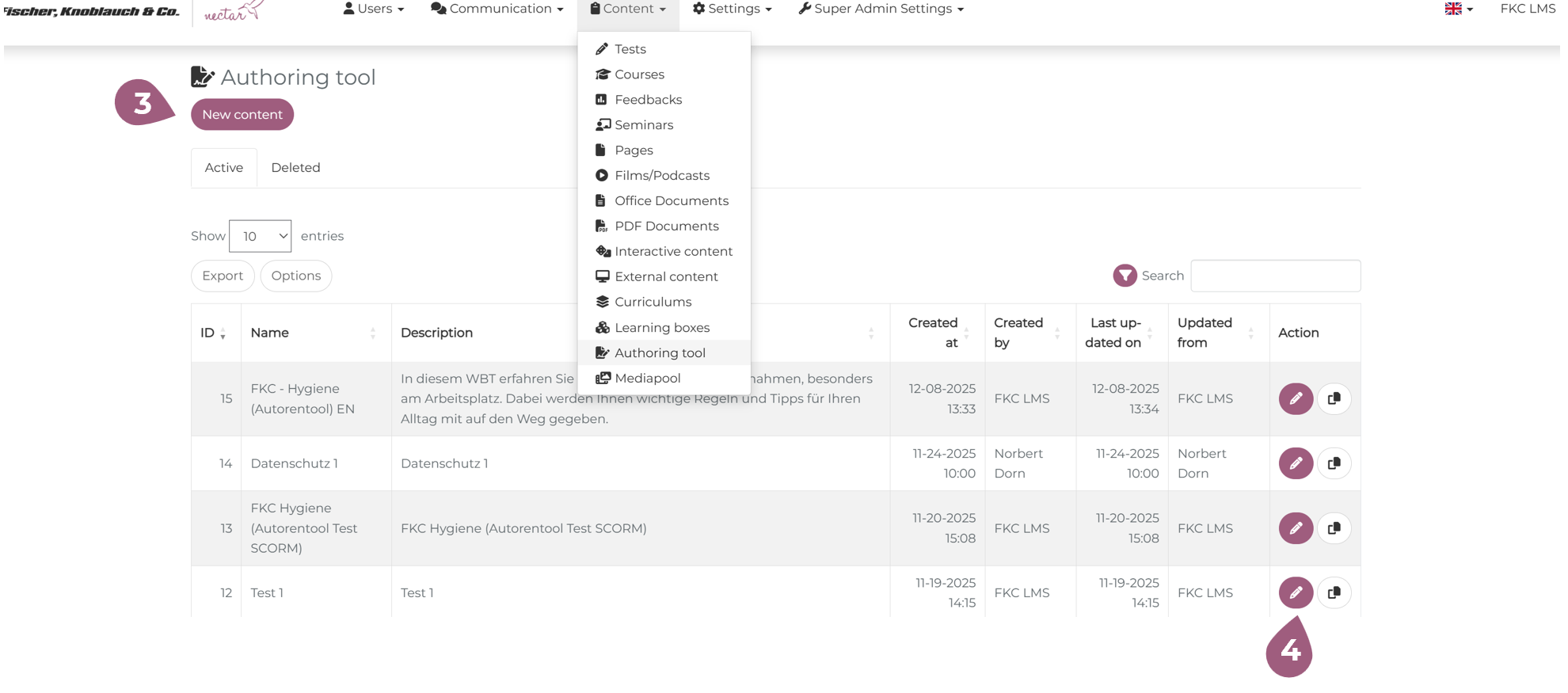
Under Administration > Content > Authoring Tool > New Content, you can create new content (3) in the LMS or edit existing content (4).
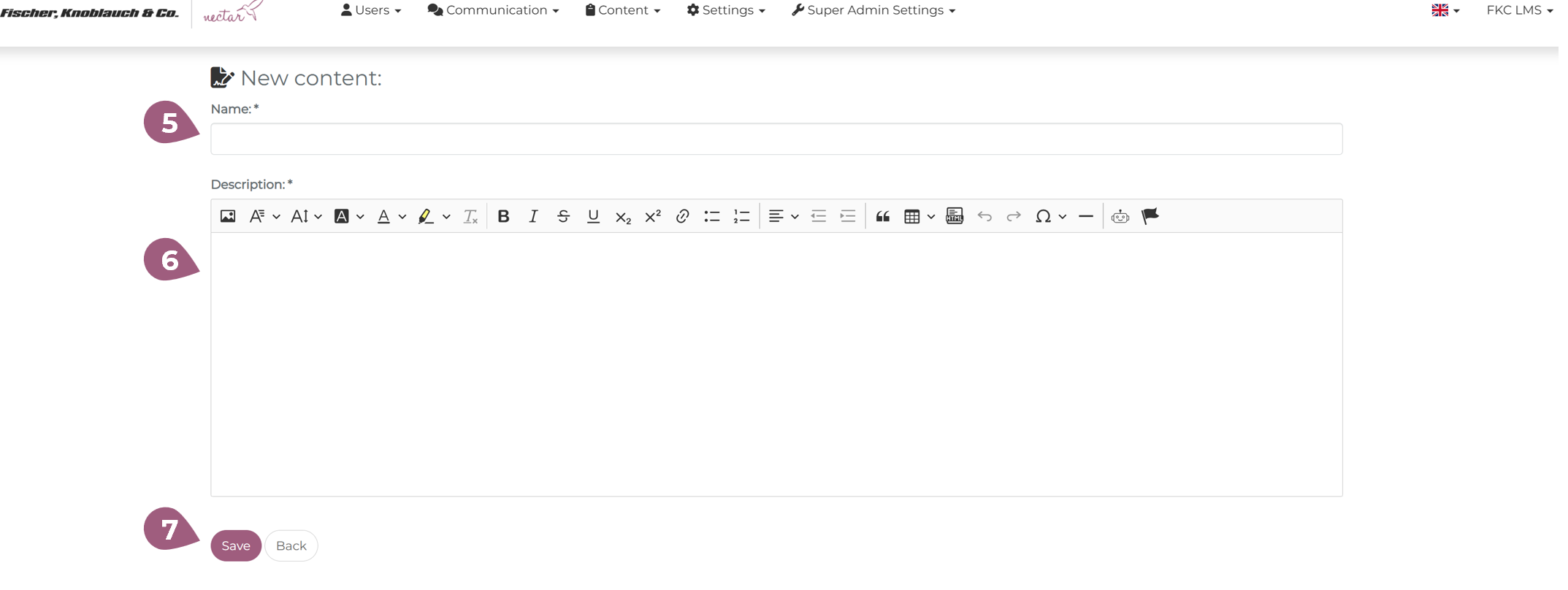
To create new content, you must fill in the name (5) and description (6) and then save (7):
After you have saved the content, you will see the following course overview:
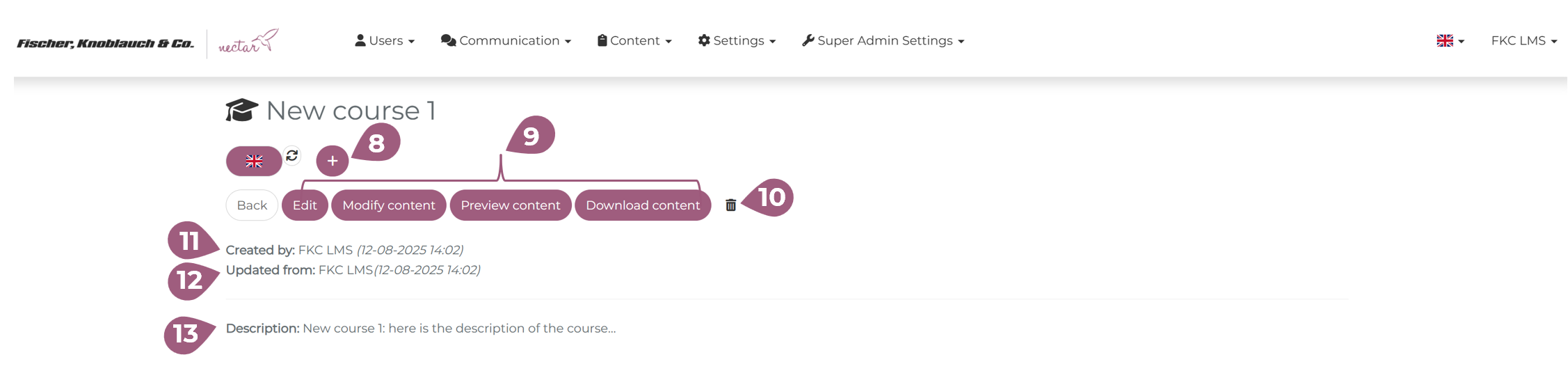
Additional language versions of the course can be added by clicking the “+” sign next to the flag (8). The content can also be translated using AI.
(9) You can make changes to the name and description at any time by clicking “edit”.
You can change the content at any time using the “Modify content” button. The functions within the authoring tool are explained in detail in this article.
Using the “Preview content” you will gain a comprehensive insight into the relevant course and be able to view it from the learner’s perspective.
You can download the created content as a SCORM file using the “Download content” option.
If you want to delete your course, the trash can icon (10) is available.
In (11) and (12) you can see the information about the creator of this content and the description (13).