Colors: Login page
Under Administration > Settings > Configuration > Colors and Menus, you can customize the colors for the login page of your LMS.
1. Login button color: This refers to the color of the two login buttons (red in the screenshot):
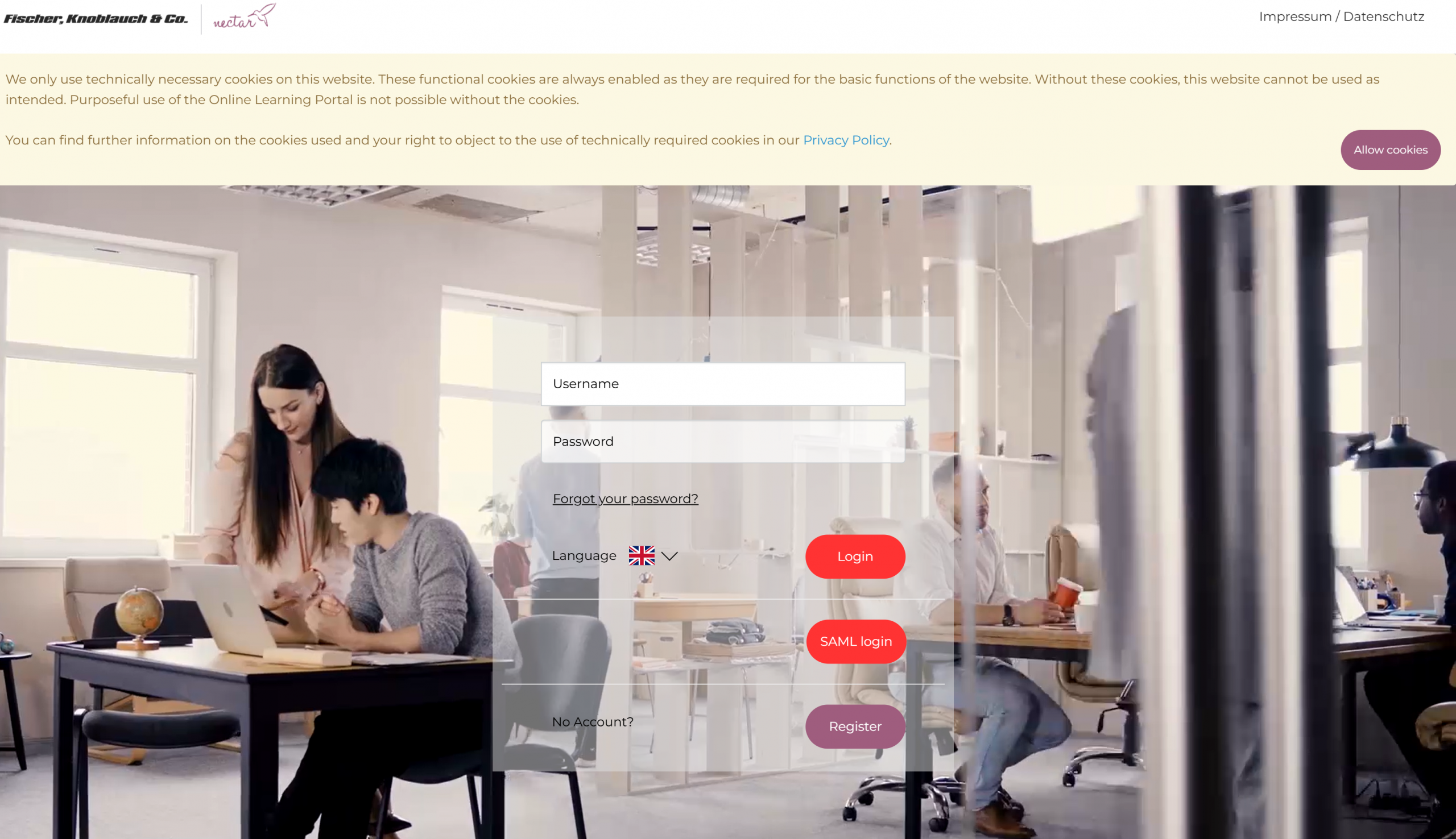
2. Login navigation color: This refers to the color of the header (red in the screenshot):
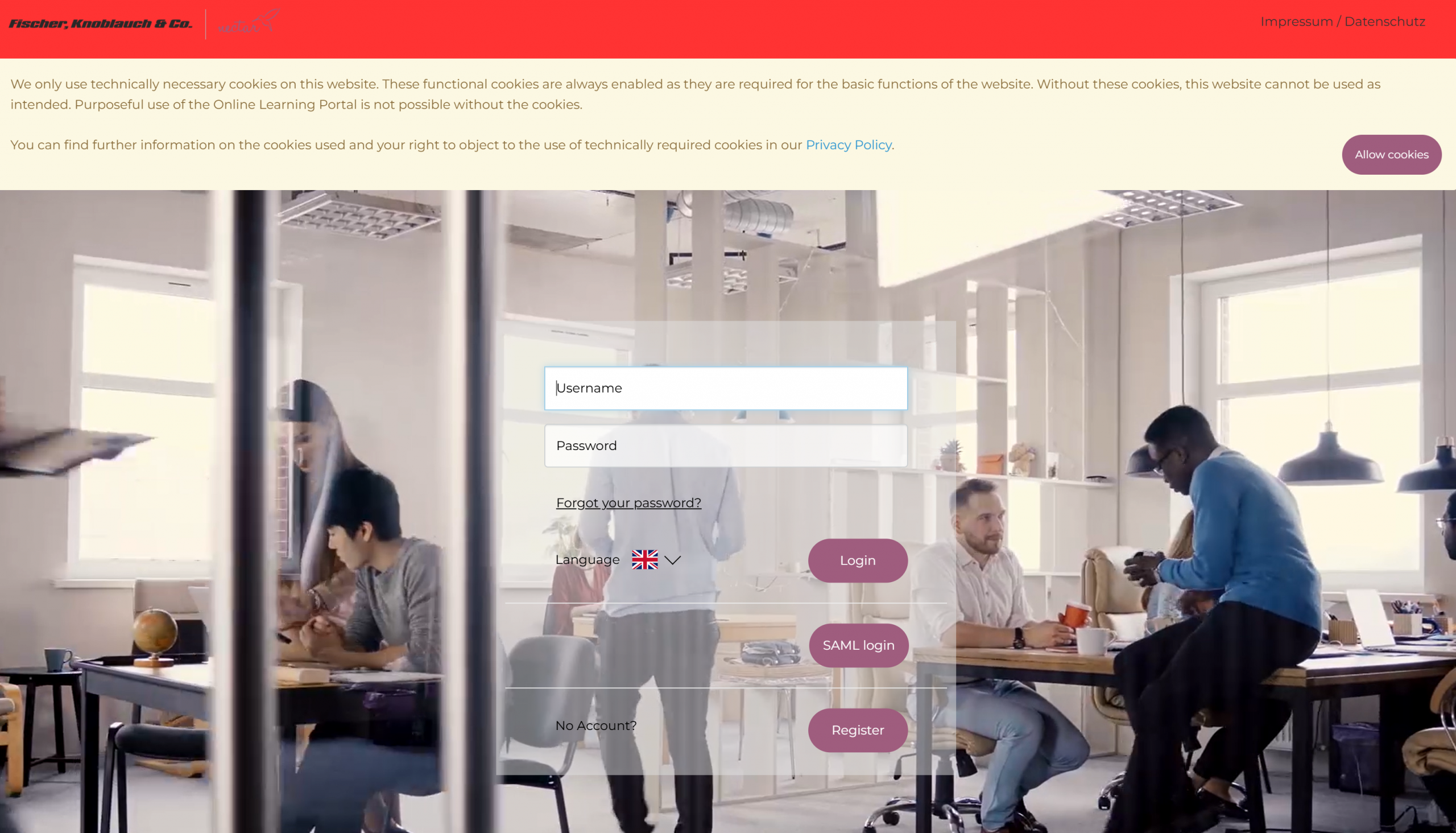
3. Login button text: This refers to the color of the letters within the login buttons (red in the screenshot):
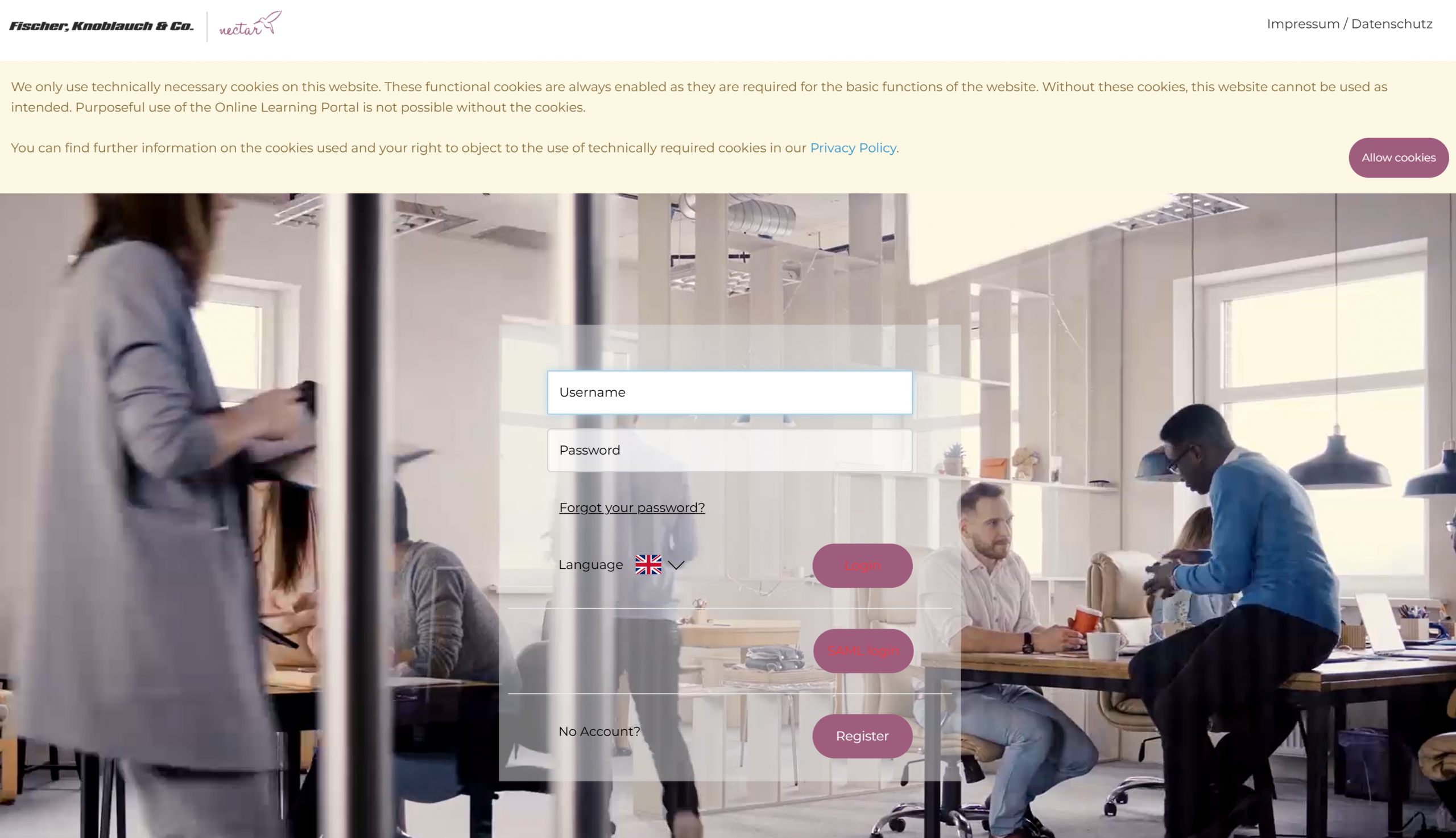
4. Login text color: This refers to the color of the free text (red in the screenshot):
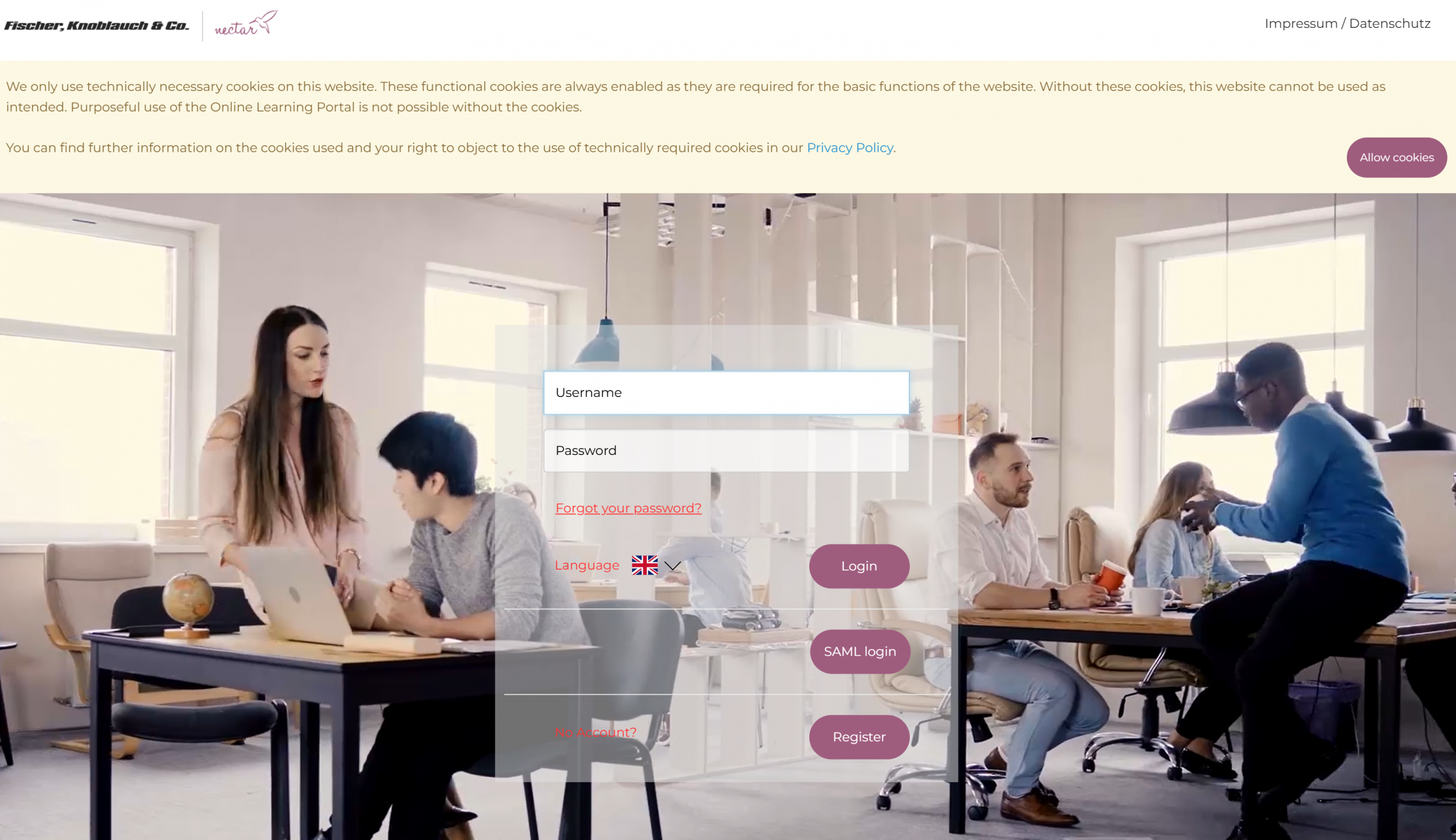
5. Login page heading color: This refers to the color of the welcome text (red in the screenshot):
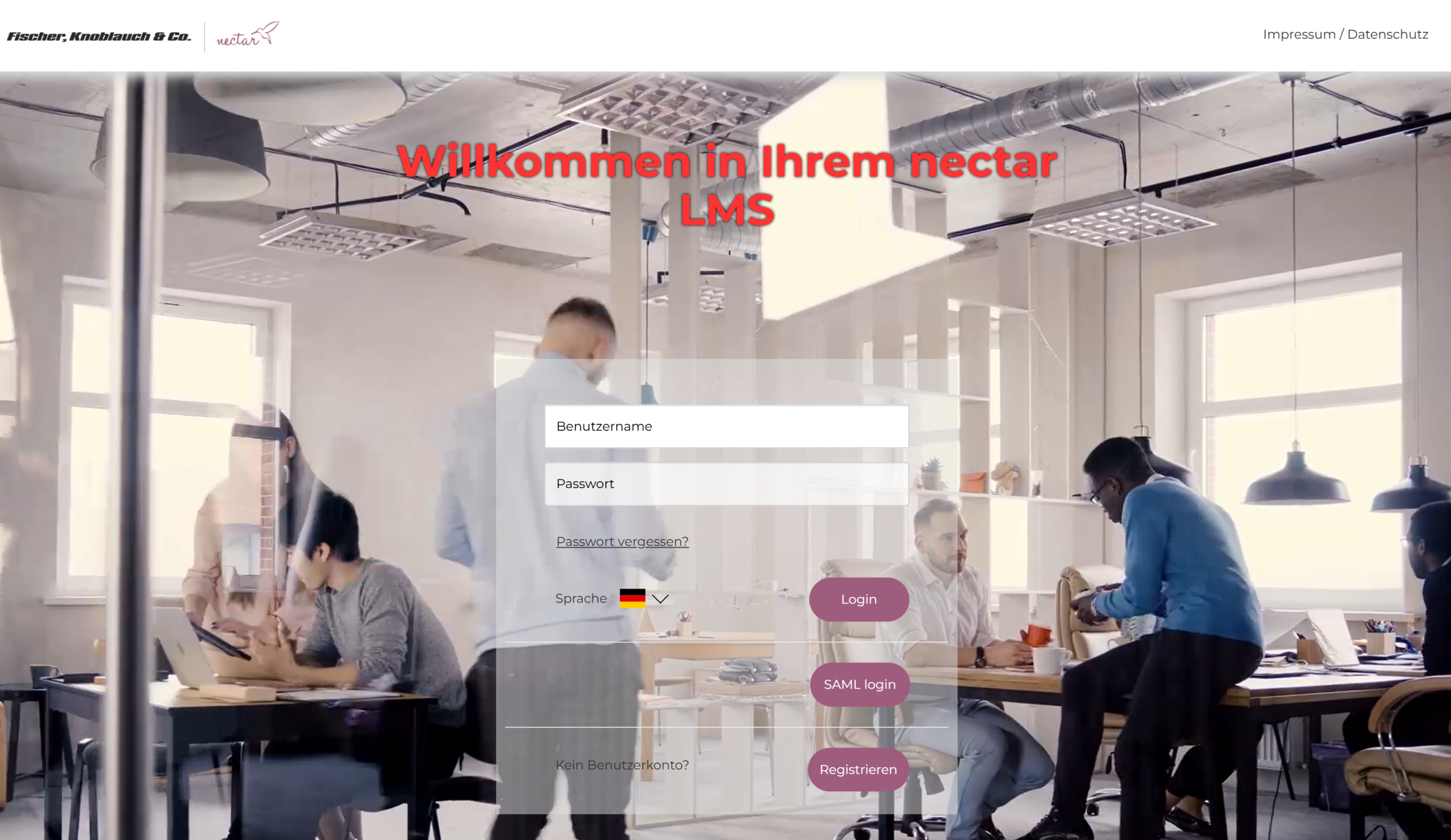
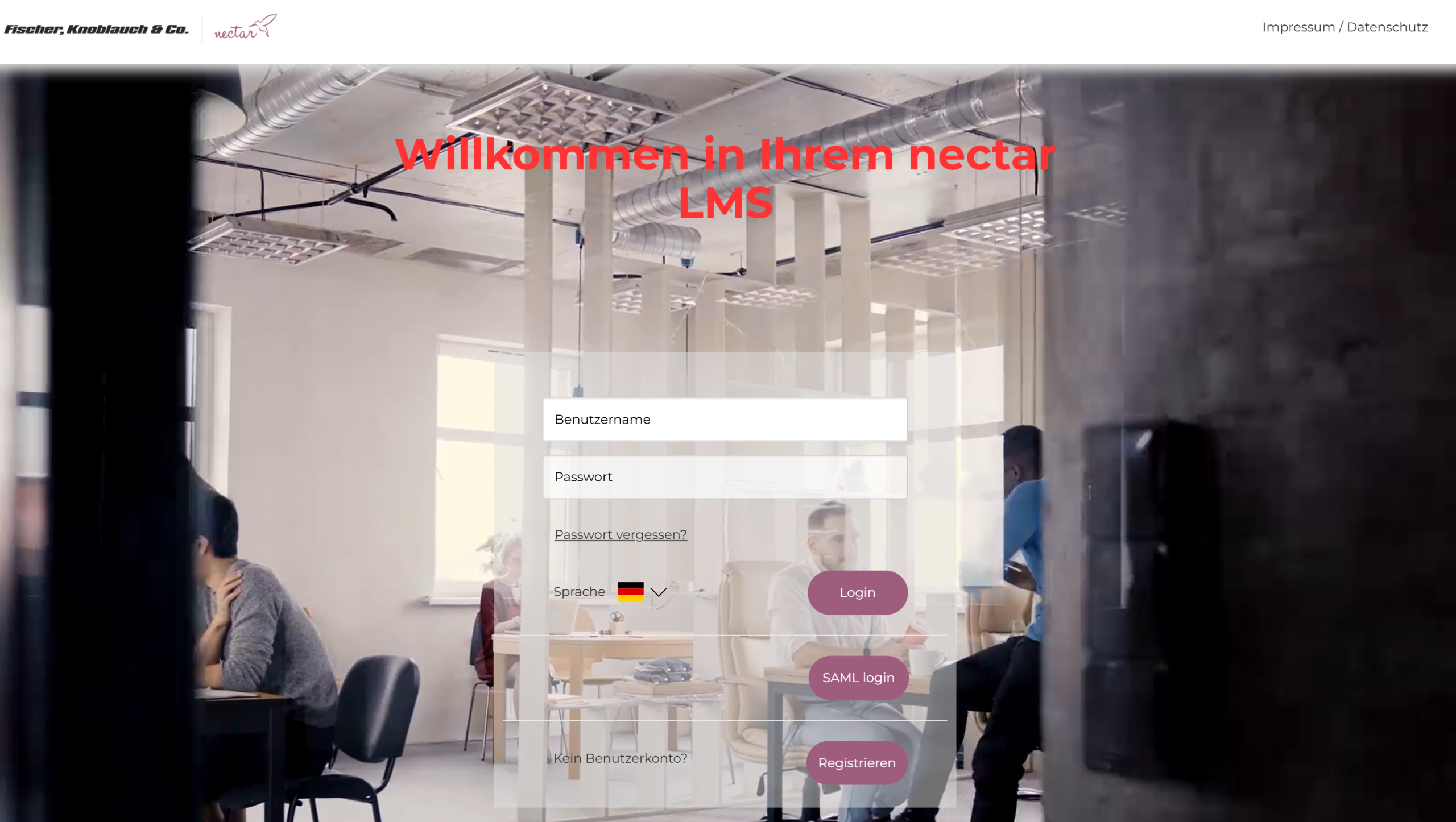
6. Enable heading text shadow: This refers to the shadow of the welcome text. If this setting is enabled, the text will look like the text in point 5. If this setting is disabled, the text will look like the next screenshot:
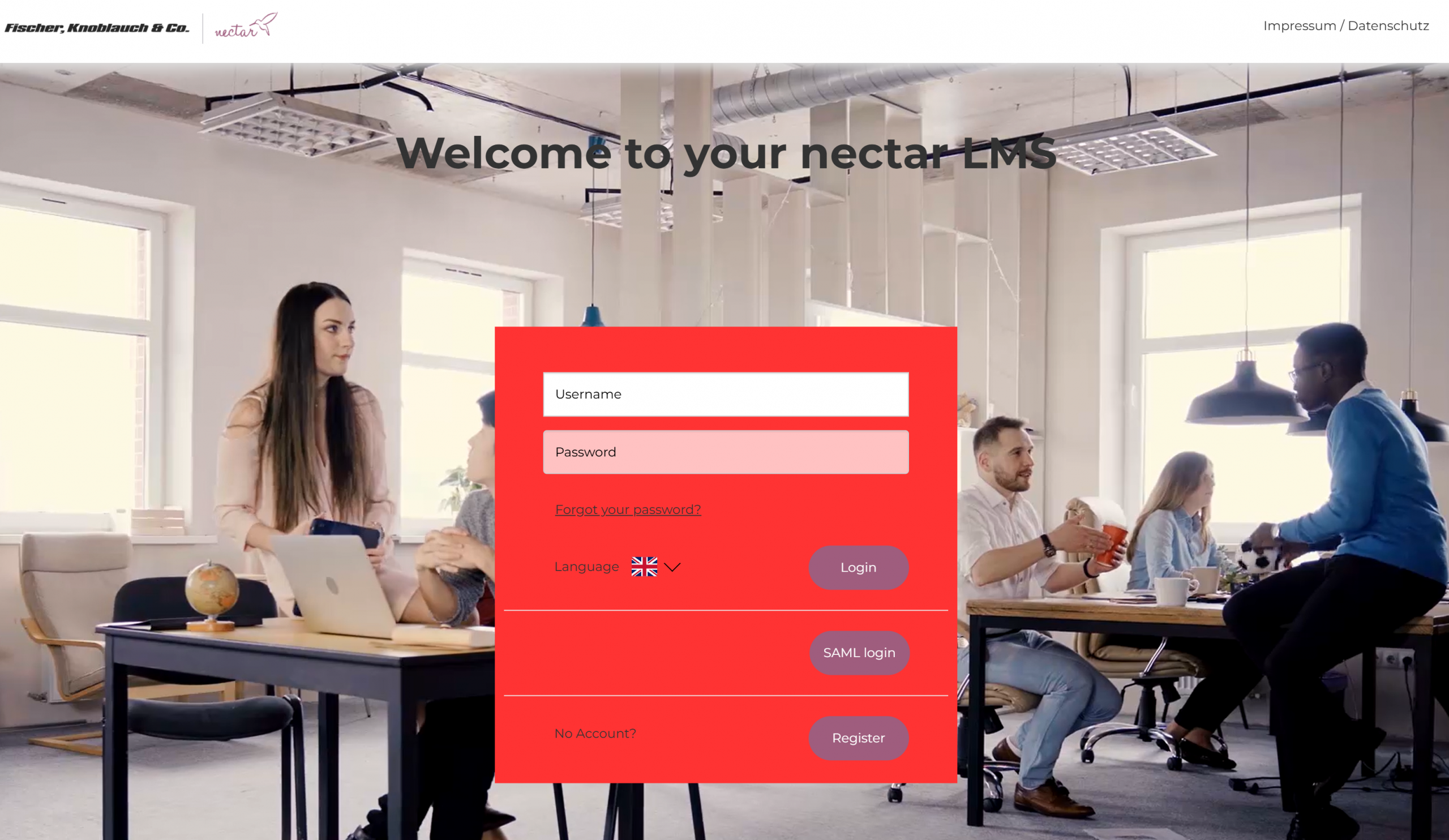
7. Login background color: This refers to the background color of the login box (red in the screenshot):
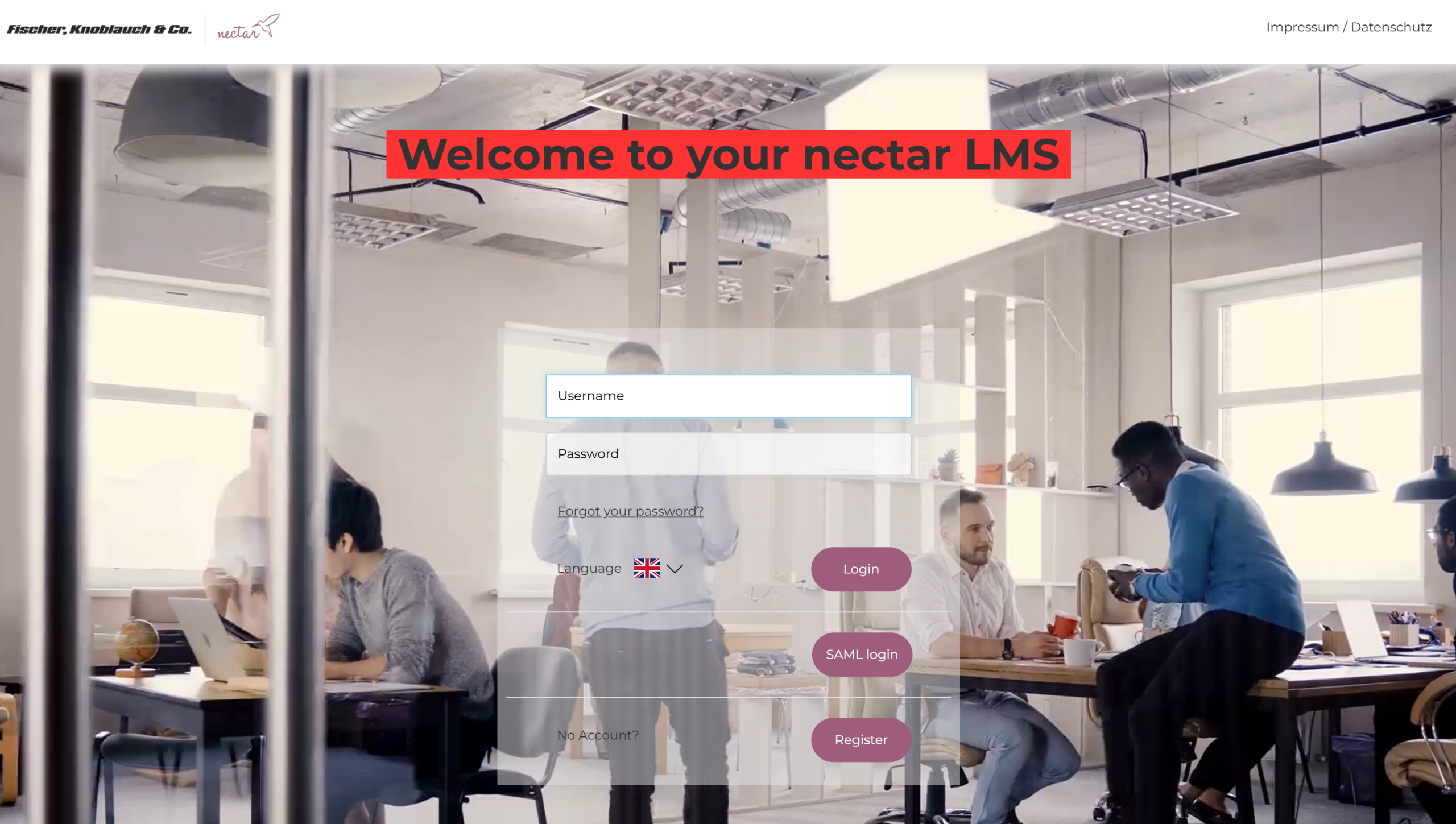
8. Welcome text background color: This refers to the background color of the greeting text (red in the screenshot):
The setting ‘Welcome text shadow’ has been deactivated and does not affect any colors in the LMS.
9. Cookie banner color: This refers to the background color of the cookie banner where users accept the privacy policy (red in the screenshot):
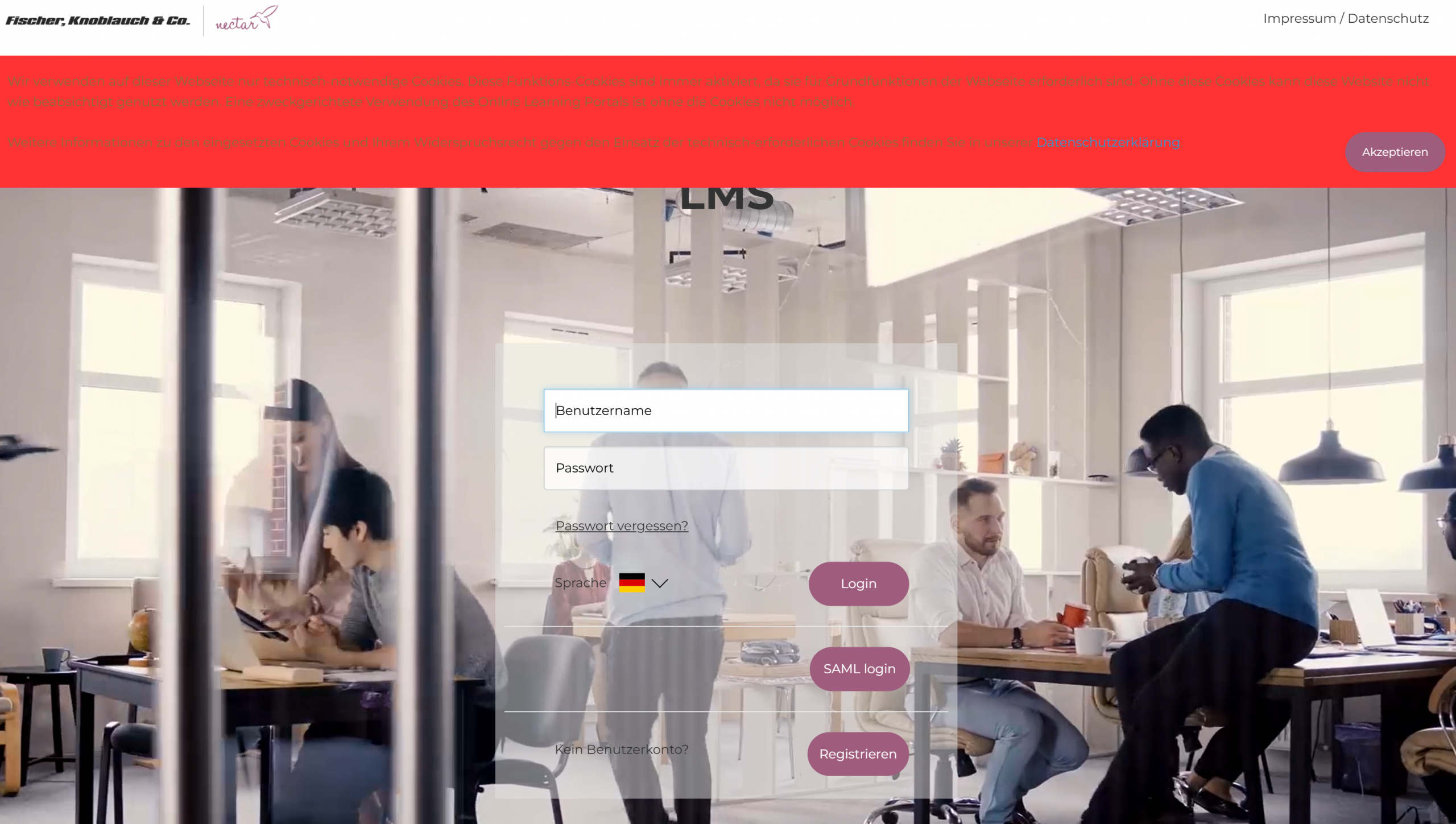
As you can see here, red is not a suitable color for this setting. Please choose a light color, as the text color cannot be changed here.