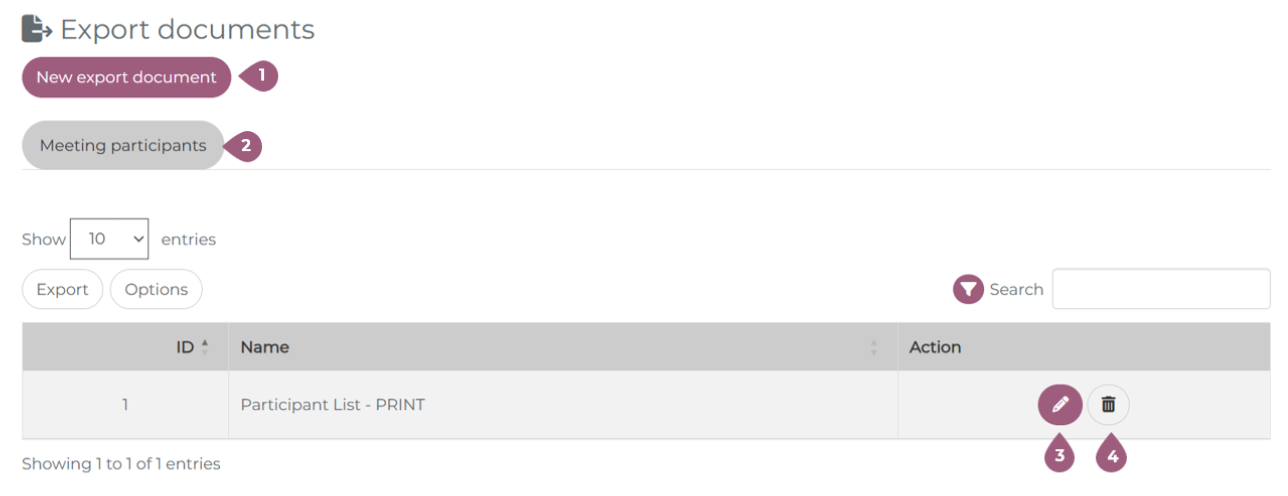
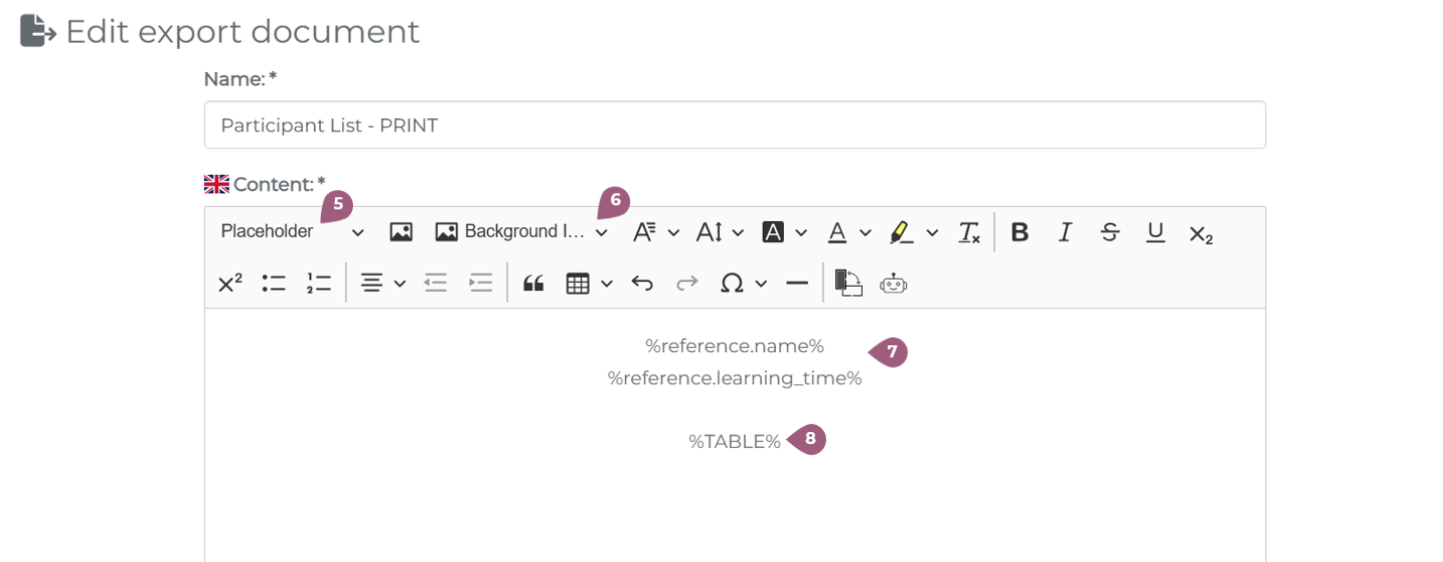
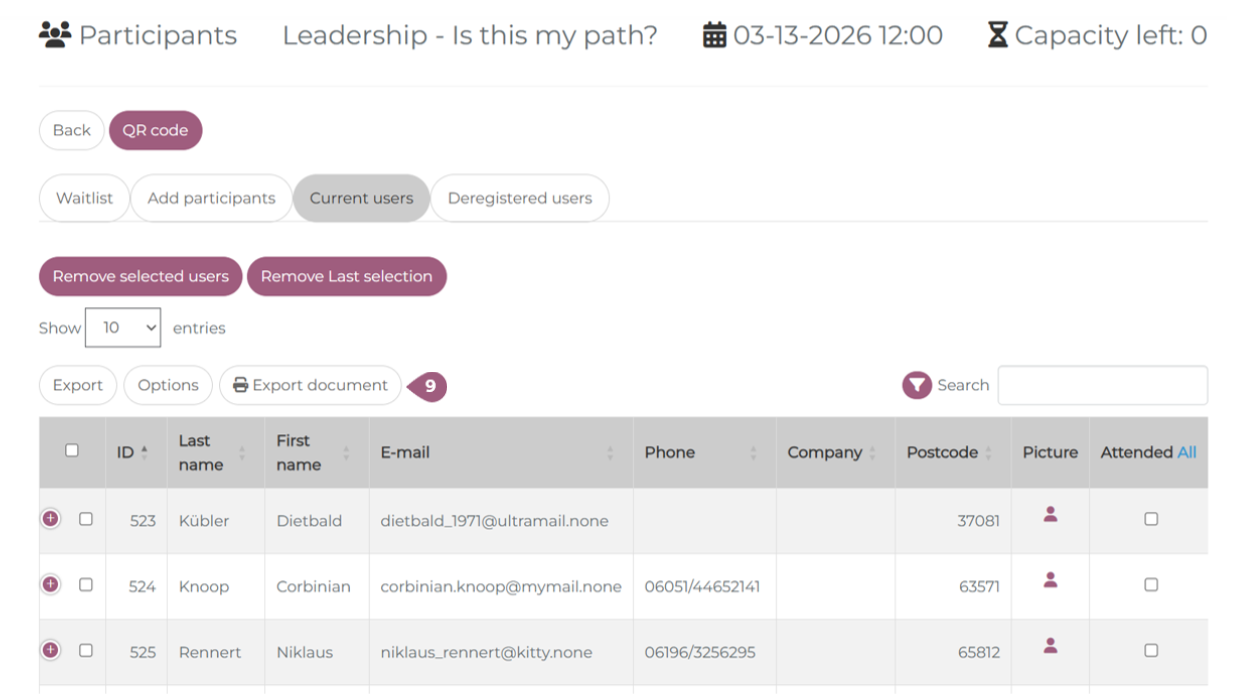
Starting with version 4.5 LMS, there is another option for customizing participant lists. If you want to add additional columns or make other changes, you can do so using an export document. Export documents can be found under Administration > Settings > Export Documents. Clicking on “New Document” creates a new template (1). Currently, only the participant list is supported (2). If you require other customized lists or tables, please contact nectar-support@fkc-online.com. In the overview table, you can edit (pencil icon) (3) or delete (trash can icon) the export documents (4). Export documents can be customized using placeholders (5) and background images (6). The placeholders automatically generate the relevant information from the seminar (7). The table (%TABLE%) contains the participant list (8). Clicking on “Save” creates the template. On the participant list page, an export document can be created by clicking on “Export Document” (9). The document to be generated can be selected from the drop-down menu. Documents can be generated both before and after the appointment, as well as before and after the appointment has been completed.Export Documents