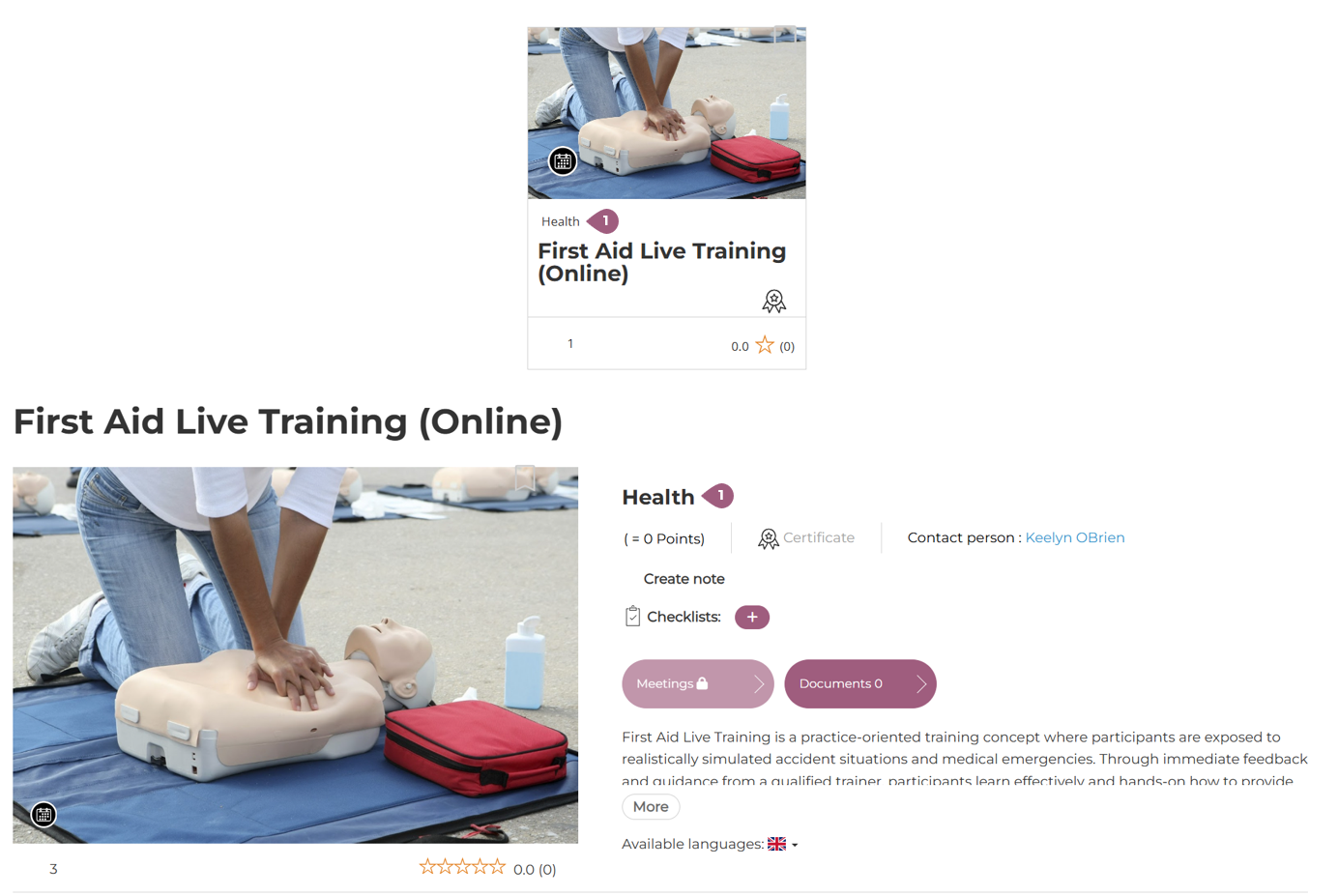
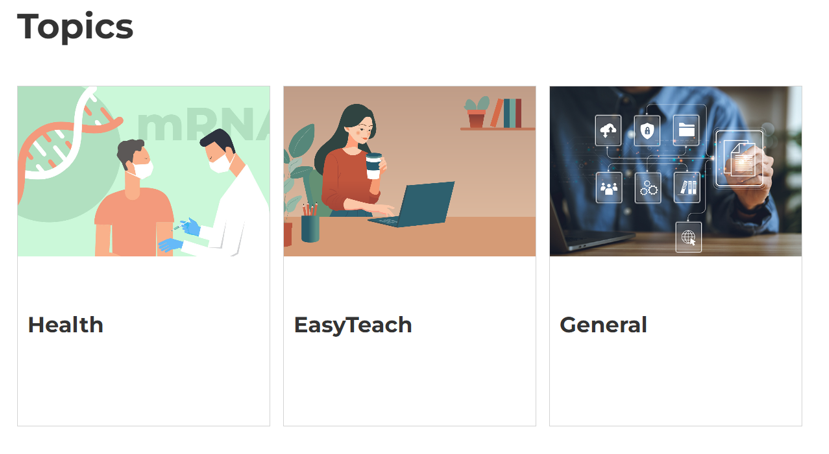
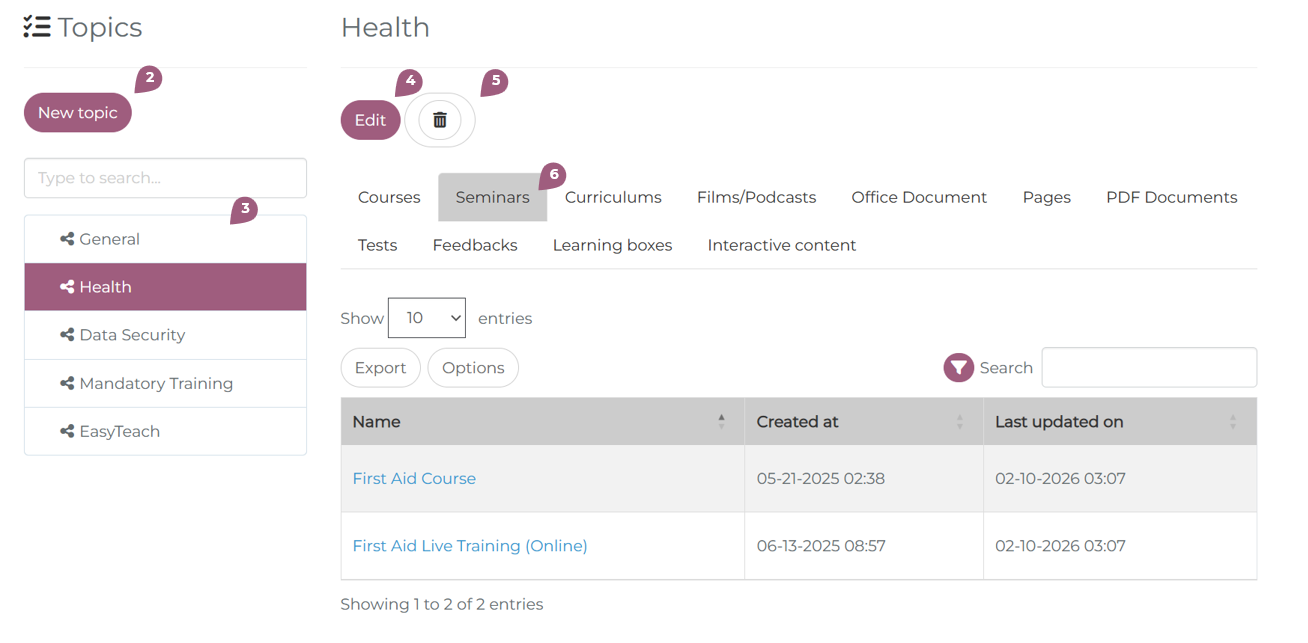
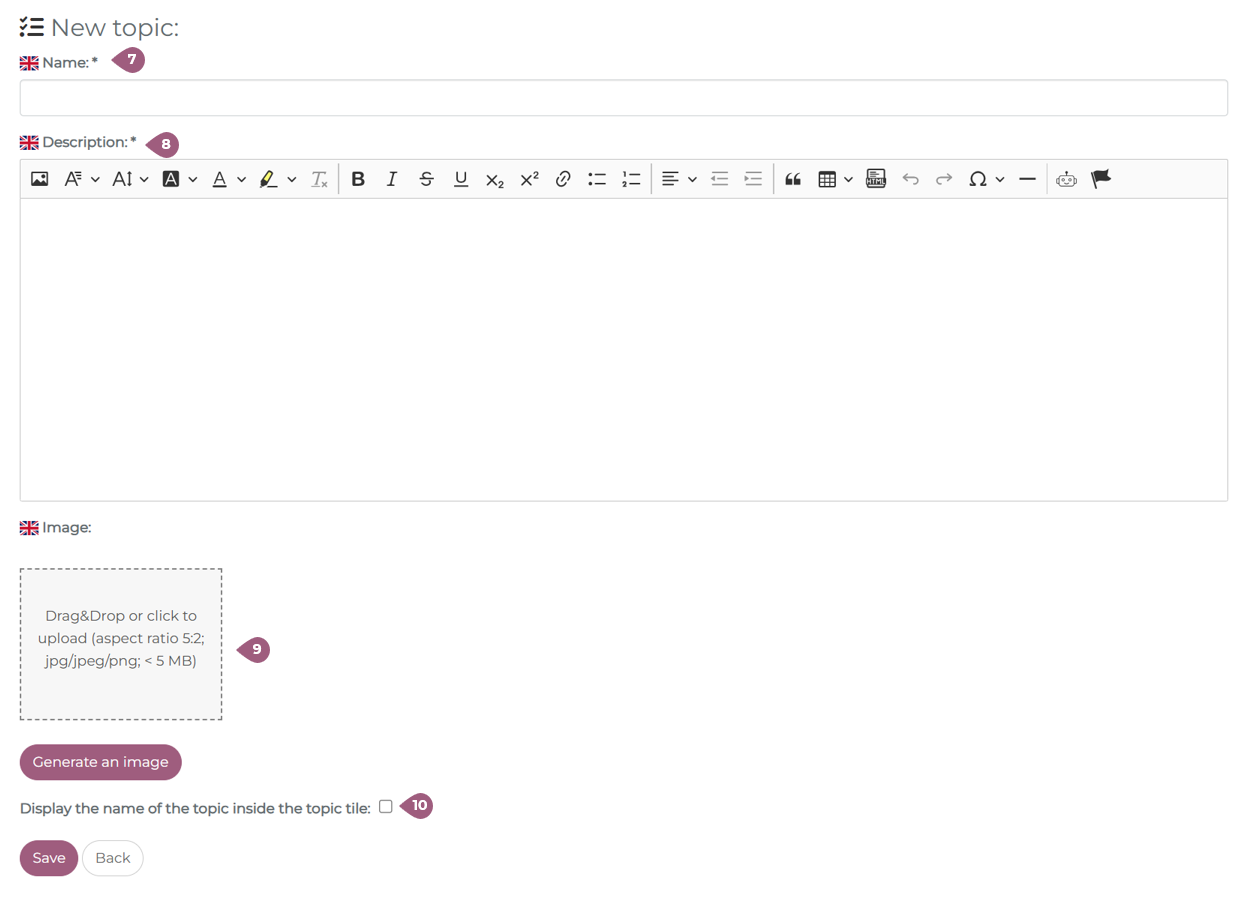
Each learning unit in nectar LMS can be assigned a topic in the general settings. This topic will be displayed both on the tile on the course overview page (1) and on the overview page for the learning unit (1). When activated in the group settings, a tile appears on the main menu that brings learners to the topics overview page, where they can filter learning units by topic. Under Administration > Settings > Topics, you will find an overview of all topics. Here you can create new topics (2) and view existing ones (3). Each topic can be further edited (4) or deleted (5). The tabs (6) display all learning unit types that exist in the nectar LMS. The individual tabs then list the learning units to which the subject area has been assigned in the advanced settings. Note: Subject areas can only be deleted if no active learning units are assigned to them. When creating a new topic, you must first enter the name (7) and description (8) and can optionally upload or generate an image (9) for the topic area. Generate an image is only available when nectar AI features are activated. By checking the checkbox, the topic name is displayed in the topic tile (10). Note: To enter and display longer topic names, the optional tile layout must be activated under Administration > Settings > Configuration in the “Settings” tab. Under Administration > Settings > Configuration > Entry Point, topic areas can be selected as the starting point in the LMS for learners. To do this, the topic area must also be activated in the group structure in the menu configuration.Topics