Configuration: Dashboard
Under Administration > Settings > Configuration under the tab “Dashboard” it is possible to customize the learner dashboard (1). Here, it is possible to change the visibility status of various components of the dashboard. All components can be (de-)activated at any time.
Note: For widgets relating to gamification, news, notes, etc. the corresponding function must be accessible to the learner for the widget to be shown. If the learner does not have access to notes over the group structure, for example, the “my latest notes” function will not appear on the dashboard even if it is activated under Settings > Configuration> Dashboard.
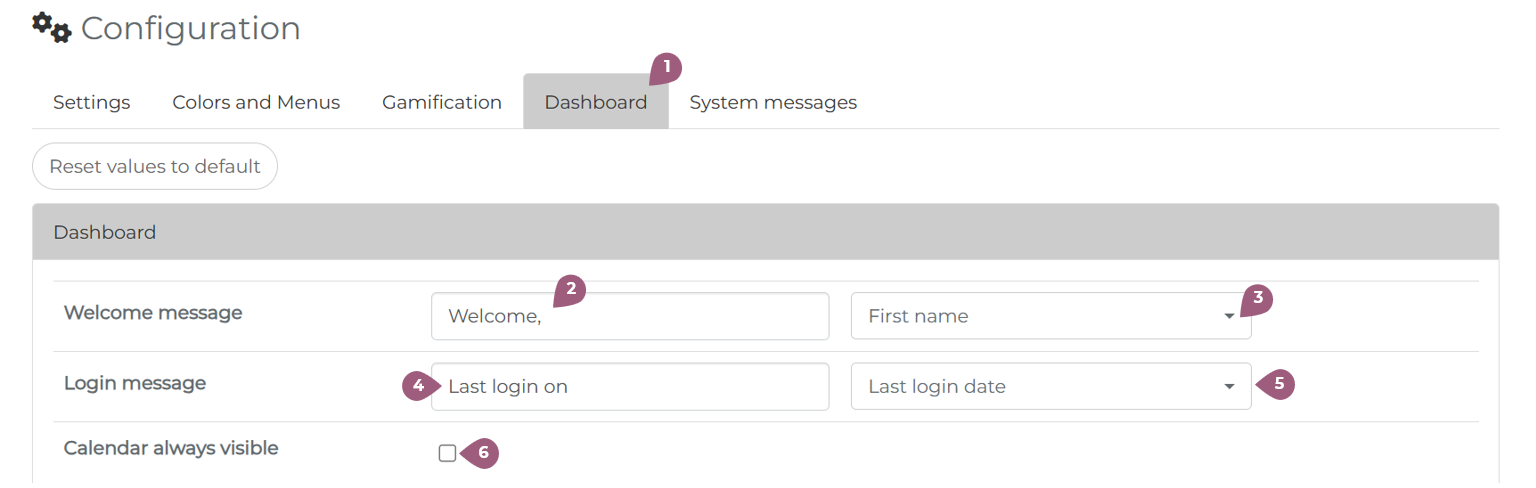
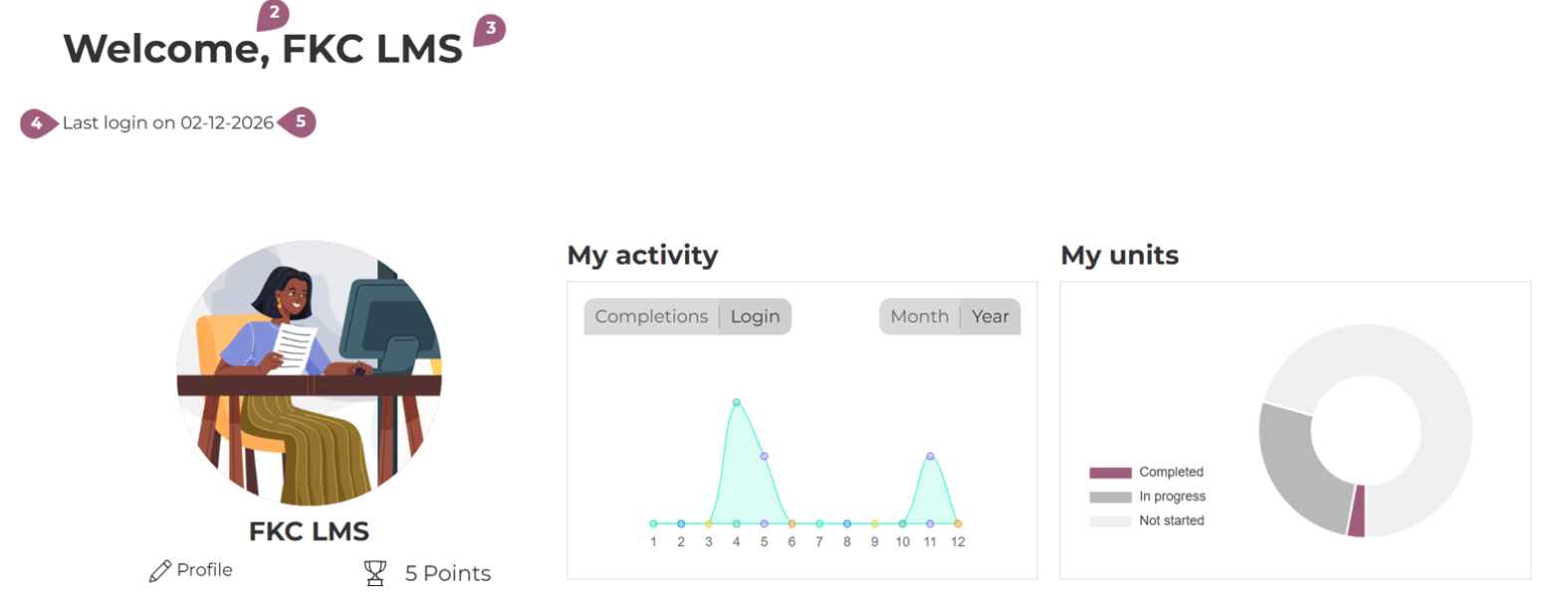
In the first section, it is possible to enter the text for the welcome message (2) and the name of the user (3). For the user name, the first name, last name, or both can be shown. The text for the login can be edited (4) and the login date or login date with time can be shown (5).
The last function in this section, calendar always visible, coming soon! (6)
Under User Activity, it is possible to activate features related to each user’s time on the platform.

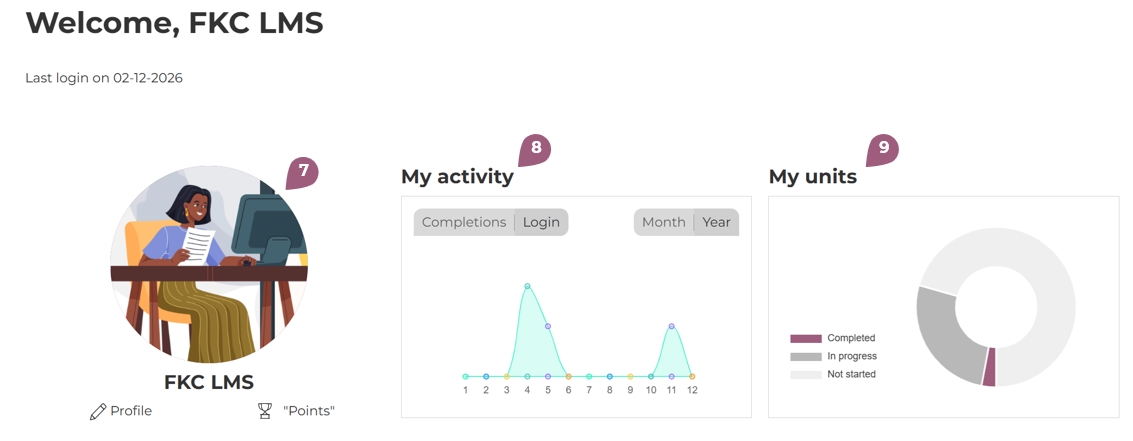
The user profile picture and the buttons to edit profile and see gamification points (7), the activity graph for logins and completions over time (8) and a donut graph with the status of the user’s units can be (de-)activated (9).
Under Unit status, the three tabs not started (10), in progress (11), and completed (12) can be (de-)activated.

Each tab functions as a link with a filter. Upon clicking on this tile, users will be brought to the course overview page with the corresponding filter activated.

Under learning unit notifications, it is possible to activate three further tabs: mandatory unit expiration (13), mandatory units started (14), and new units (15).
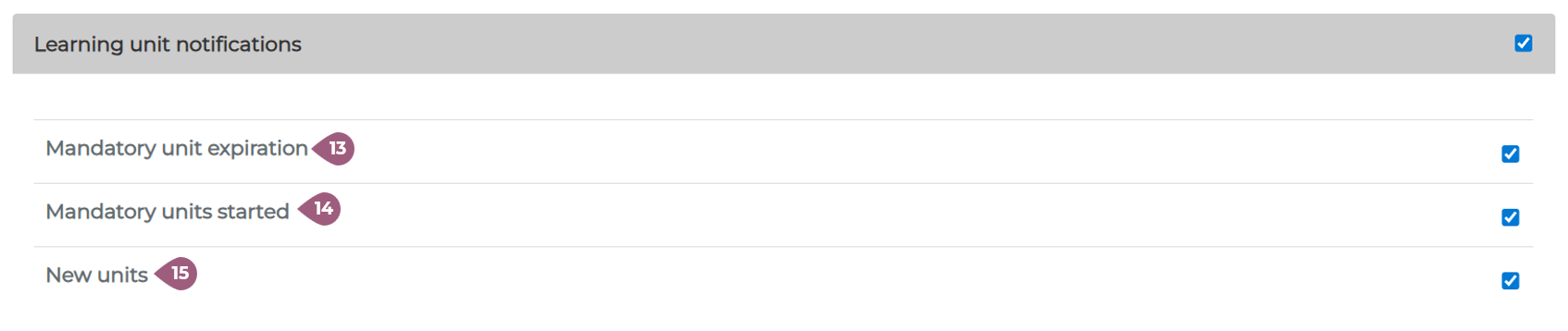
Mandatory Units expiration shows the next expiry date on a mandatory unit for the user. The pending mandatory units take users to the their mandatory units on the course overview page. All mandatory units will be shown regardless of their completion status. New units takes users to the course overview page with the status “not seen.”

Under News and notes, it is possible to activate the widgets most popular unit this month (16), news (17), and my latest notes (18).
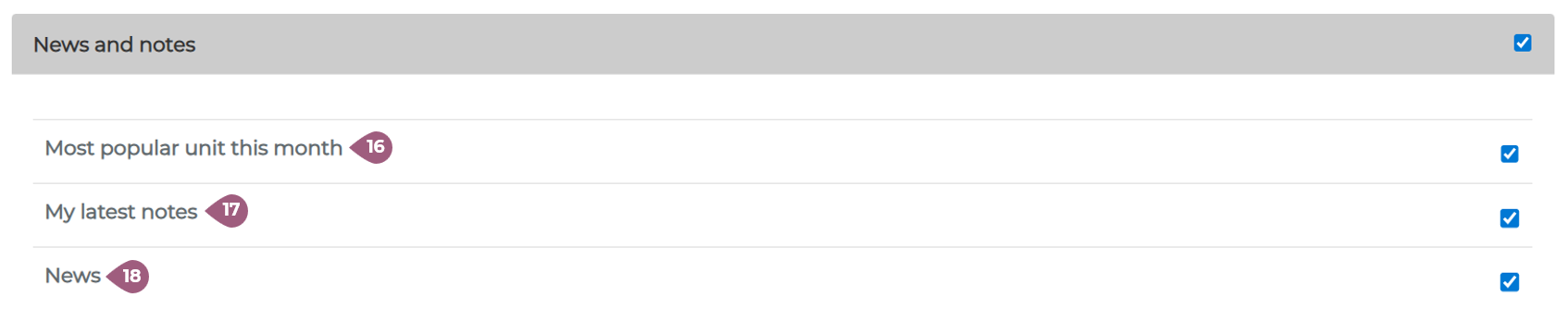
The most popular unit is the unit that has the most views in the previous month. News sent out by administrators will be displayed under news. Clicking on the news item brings the learner to the news item. Under my latest notes, learners will be linked to their personal notes page, not to the learning unit where the note was written.

Under Dashboard Widgets, widgets related to seminars and gamification can be activated.
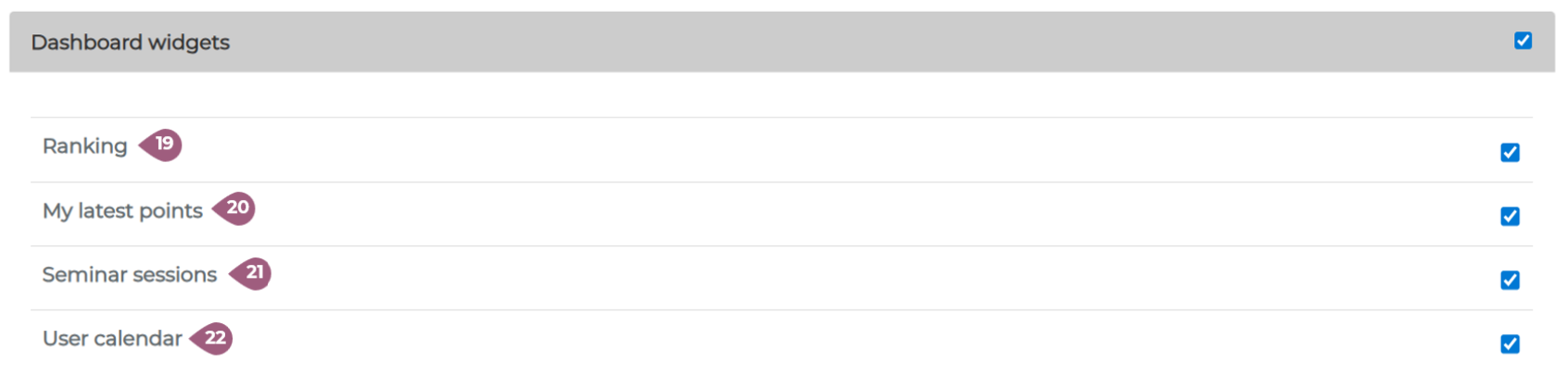
Ranking displays the users with the most gamification points in the LMS (19), whereas my latest points shows how the users received their last 5 points (20).

The functions seminar sessions (21) and user calendar (22) activate two different calendars on the user dashboard. The seminar sessions widget displays a calendar only with seminar meetings and list of the upcoming meetings. The user calendar also contains key dates relating to mandatory units and other deadlines with the LMS, and can be used to organize personal events as well.

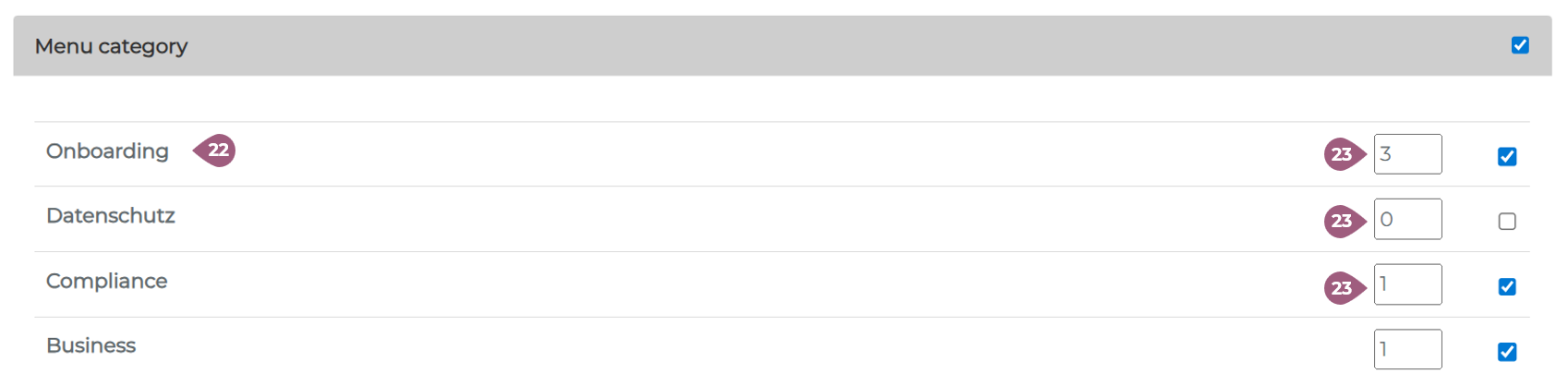
The final section of the dashboard relates to the menu categories in your LMS (22). If no menu categories have been created, this section will remain empty. By each menu category, it is possible to show a specific number of learning units from the menu category on the dashboard (23). Each menu category can be configured differently.