PDF Documents Overview
Under Content > PDF Documents you will land on the PDF document overview page with the overview table. Here, you can create, edit, manage, or delete PDF documents in your LMS.
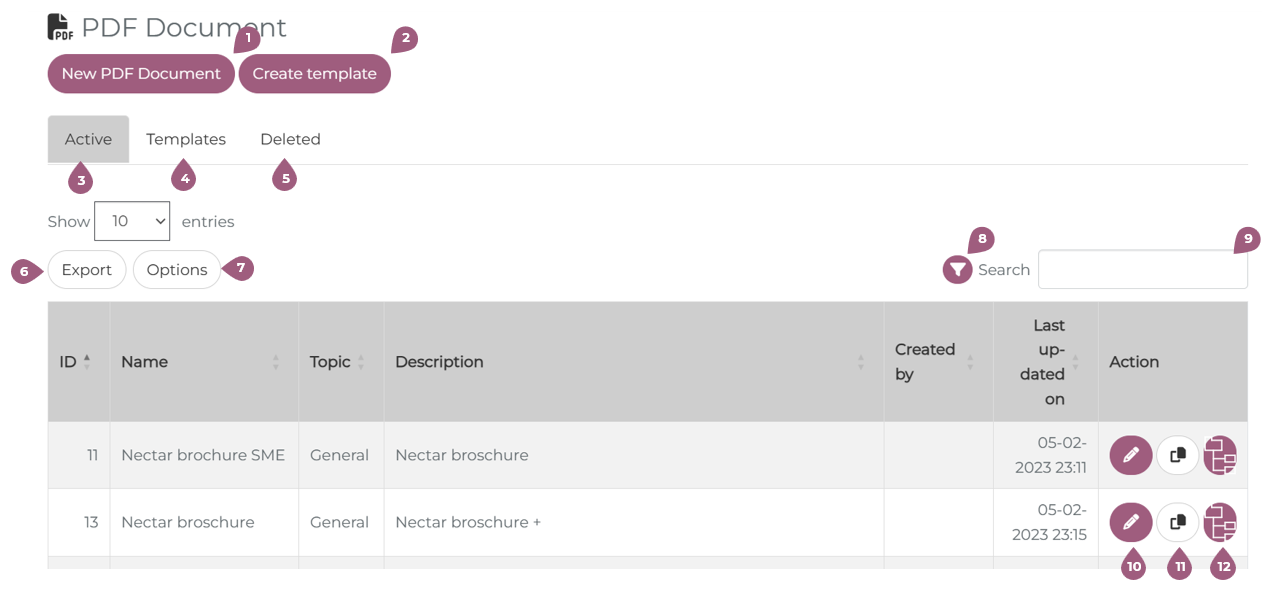
You can add new PDF documents to your LMS (1). An in-depth explanation of creating PDF Documents can be found here: Creating PDF Documents. All active PDF documents will be shown in the “Active” tab in the PDF document overview table (3).
It is also possible to create templates to save combinations of settings (2). These can then be accessed and used from the templates tab (4).
Deleted PDF documents are visible under the “Deleted” tab (5). PDF documents are able to be recreated after deletion.
The table itself can be exported into an Excel, CSV, or PDF file, copied, or printed out (6). The table columns themselves can be likewise adapted to preferred visibility and order (7). With the search function, it is possible to search each individual column (8) or by keyword (9).
The overview table includes the information PDF Document ID, Name, Topic, Description, creator, and last update date. The main actions that can be undertaken in the course overview table are:
- Edit existing PDF documents(10)
- Copy a PDF document, and (11)
- See the current assignments of this PDF document by group, curriculum and learner (12)