PDF Document Statistics
Under Administration > Users > Statistics > Learning Status Detail, you can access the PDF Document Statistics. This section provides key insights into user progress on PDF documents within your LMS.
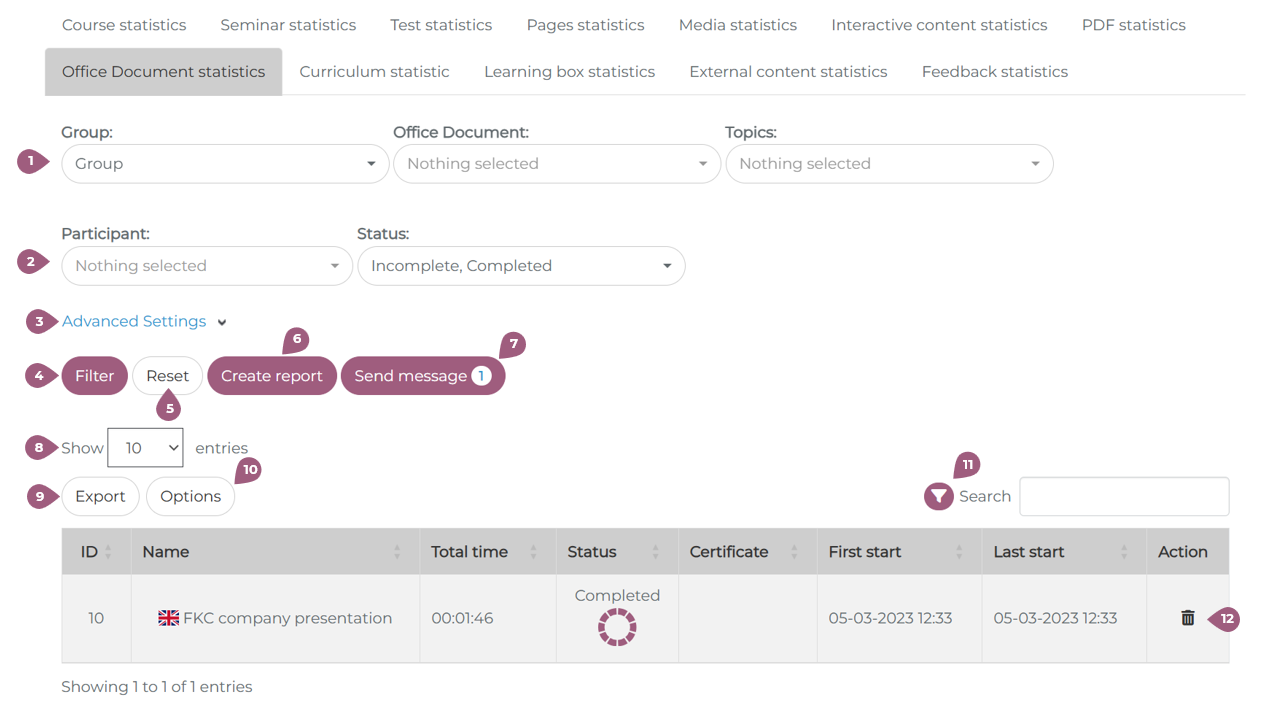
PDF documents can be filtered by groups, office documents, topics, participants, and status of the learning unit (Not started, incomplete, complete) (1,2).
Under Advanced Settings, you can access more filters, see below (3).
Click “Filter” to display results based on the selected criteria (4). Filters can be cleared using “Reset” (5).
The selected filter combination can be saved as a report by clicking “Create Report.” Saved reports can be accessed under Statistical Reports (6).
The Statistics section also includes a messaging function. This allows you to send a message to all users who match the selected filter criteria (7).
The view can be changed to see more entries at once (8). The statistics can be exported as Excel, CSV, PDF, copied, or printed under “Export” (9). The columns of the table can be hidden or rearranged under “Options” (10).
The results table can be searched per column by clicking the filter icon within a column or across the entire table using the search box (11)
By default, the results table contains the following information:
-
User ID
-
User First and last name
-
User Company
-
PDF document name (including a language flag indicator)
-
Total learning time spent on the unit
-
Status of the unit
-
Certificate (if one was created and is still valid)
-
Expiry date of the completion
- First and last start date of the unit
-
Action column
In the Action column:
-
You can reset the progress of a unit by clicking the trash icon (12).
-
Units with the status “In Progress” can be manually closed by clicking the checkbox (not shown in the screenshot).
Note 1: The groups LTI Published Units, Individual Content, and Unassigned Unit cannot be selected in combination with other groups.
Note 2: Topics are not automatically updated to reflect the topics assigned to documents. If a topic filter is selected that does not contain any associated documents, no results will be displayed.
Note 3: If you would like to manually close learning units with the status “Not Started,” this feature must be activated by the nectar Support Team. Please contact us at nectar-support@fkc-online.com.
Note 4: If you require custom columns in the statistics, please contact us at nectar-support@fkc-online.com.
Note 5: Unless otherwise configured, only valid certificates are shown in the statistics. Expired certificates can also be displayed if the setting “LMS certificates also visible after expiration” under Administration > Settings > Configuration is activated.
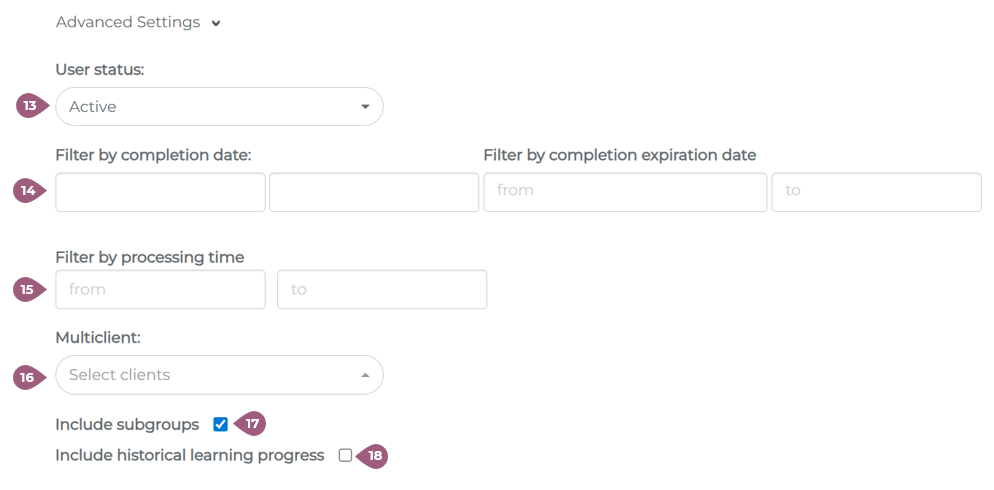
Under Advanced Settings, the following additional filters are available:
-
User status (active or inactive) (13)
-
Completion date of the learning unit or expiry date of the completion (14)
-
Processing time for mandatory units (15)
For Super Administrators or users with cross-client rights to user data, statistics can be evaluated across multiple clients under “Multiclient” (16). Individual clients can be selected there.
The checkbox “Include subgroups” is activated by default (17). If this option is deactivated, only users in the exact groups selected in the group filter will be displayed. When activated, users from both the selected groups and their subgroups are included.
The function “Include historical learning progress” (18) allows you to search for results that have expired or have been deleted/reset. These results are marked as “Archived.”