Authoring tool – Step for step demonstration
The authoring tool in nectar LMS allows you to develop your own content.
The following screenshot shows the authoring tool during content editing:
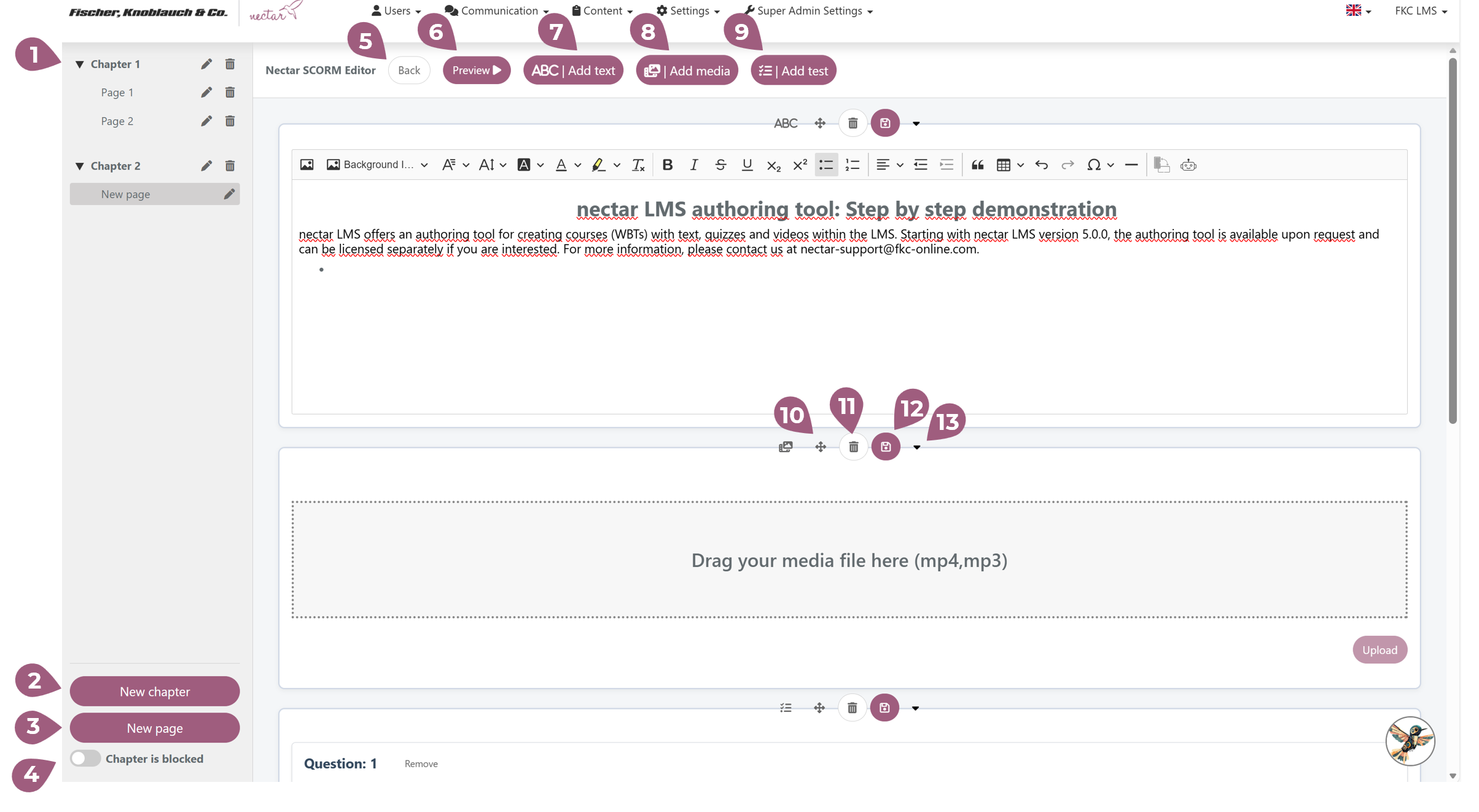
(1) Here you will find the content overview. You can edit chapter and page titles, change their order, and delete them. Additionally, you can create a new chapter (2) or a new page (3).
If you lock the navigation (4), other administrators will not be able to edit this content.
Use (5) “Back” to return to the course overview page.
Use (6) “Preview” to get a comprehensive overview of the content created so far and view it from the learner’s perspective.
Use (7) “Add Text” to add a text element to this page.
Use (8) “Add Media” to add a media element to this page, where you can embed MP4 or MP3 files.
Use (9) “Add Quiz” to add a quiz element to this page, where you can create as many questions as you like.
Use the cross button (10) to move any element.
You can delete any item using the trash can icon (11).
You need to save every change in each item using the disk icon (12).
You can expand and collapse any item using the arrow icon (13).
Important note for content creators: The bar and page number are not updated in the edit and preview views (14).