Color settings
Under Administration > Settings > Configuration > Colors and Menus > in the “Colors” section, you can customize the colors for your LMS.
1. Navigation background: This refers to the main navigation color for the menu (red in the screenshot):
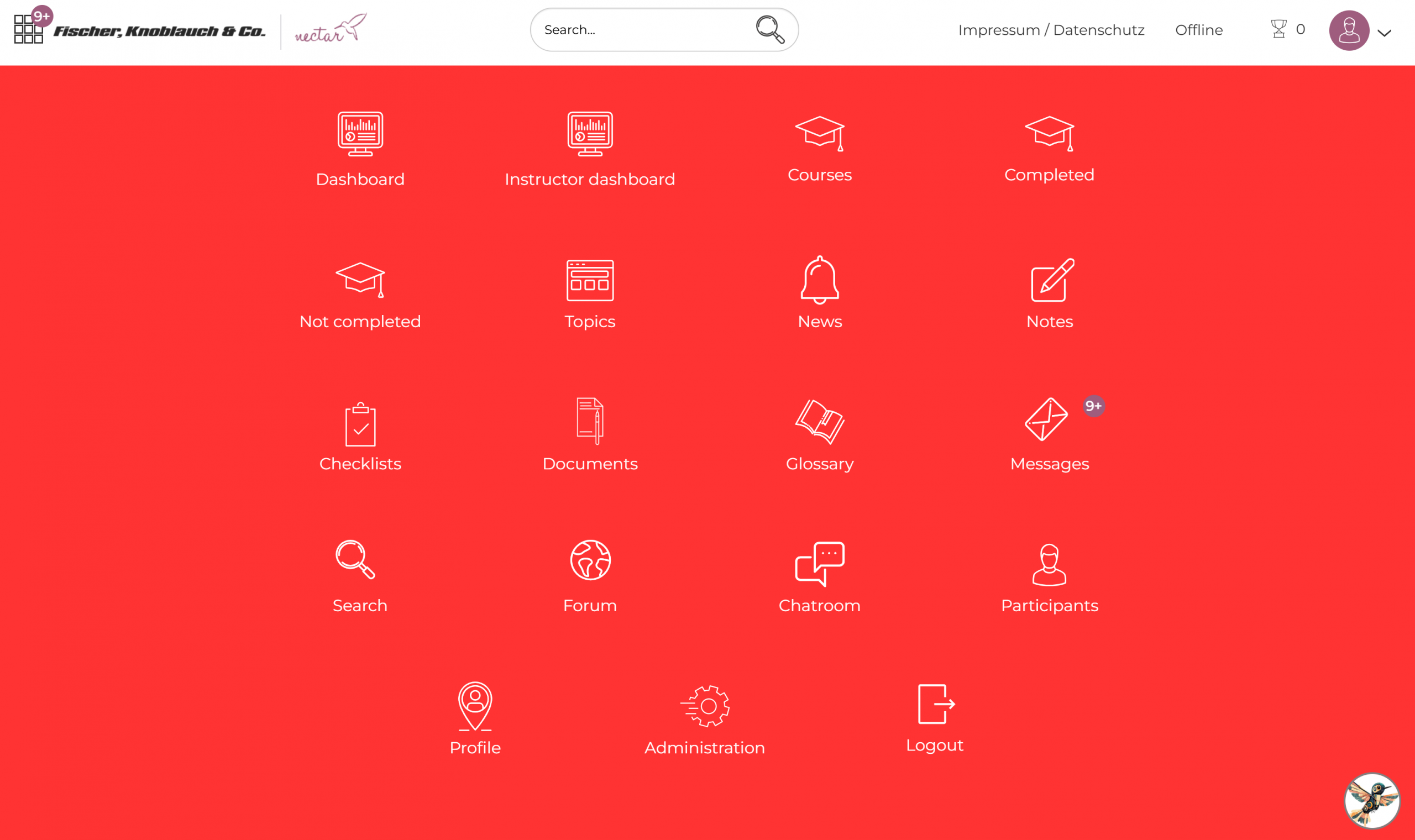
2. Main color: This refers to the color of all notifications (red in the screenshot) and the color of the bars in the learner dashboard:

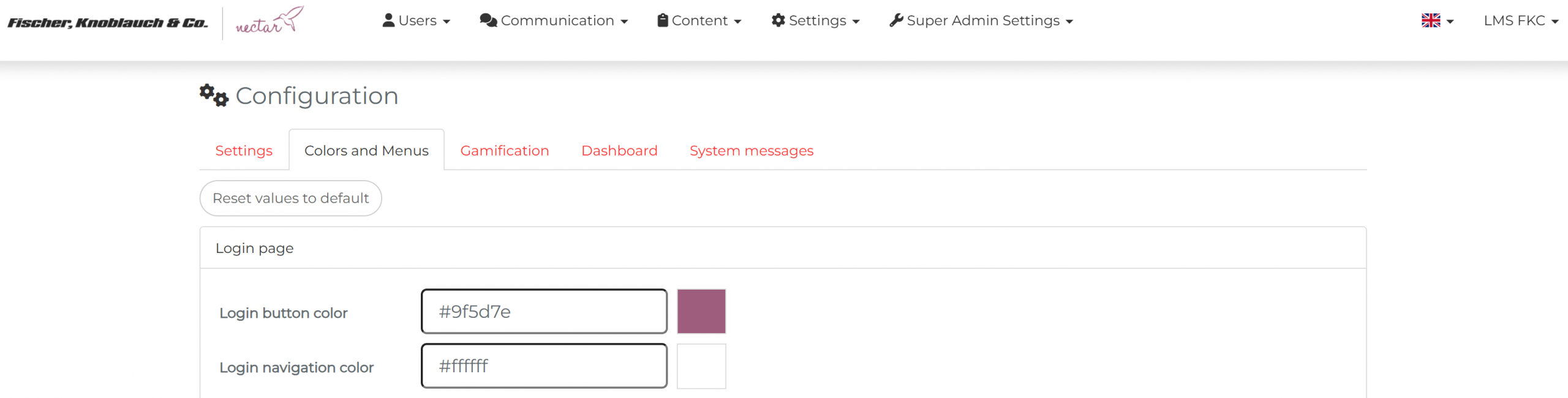
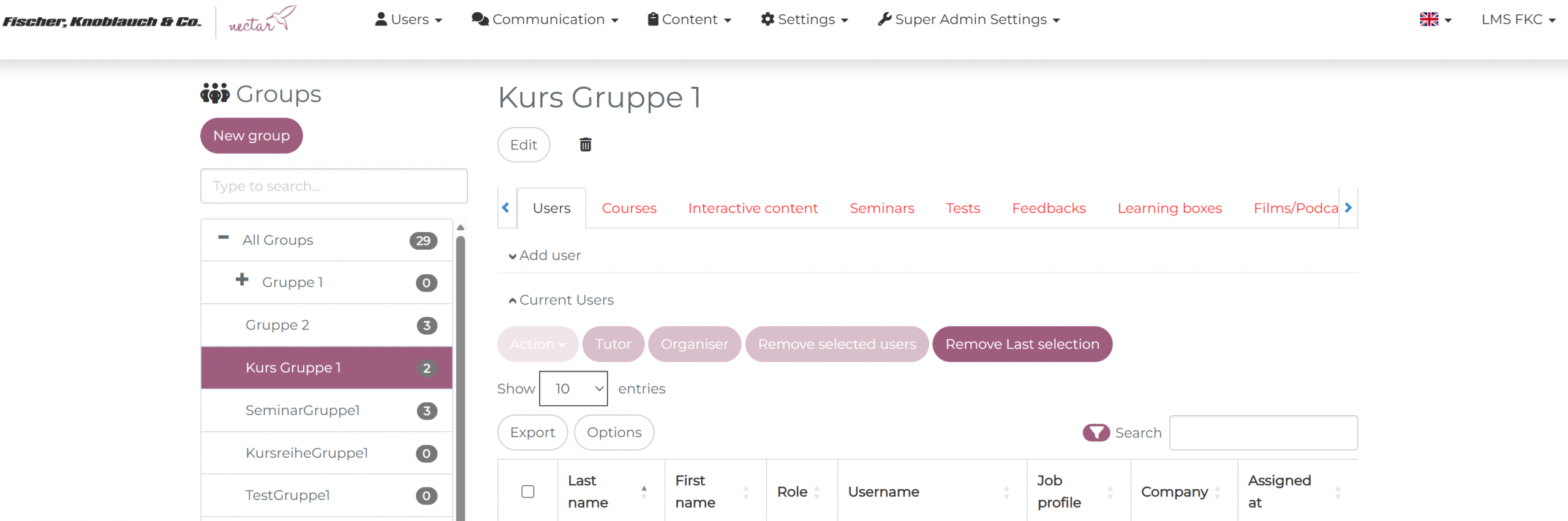
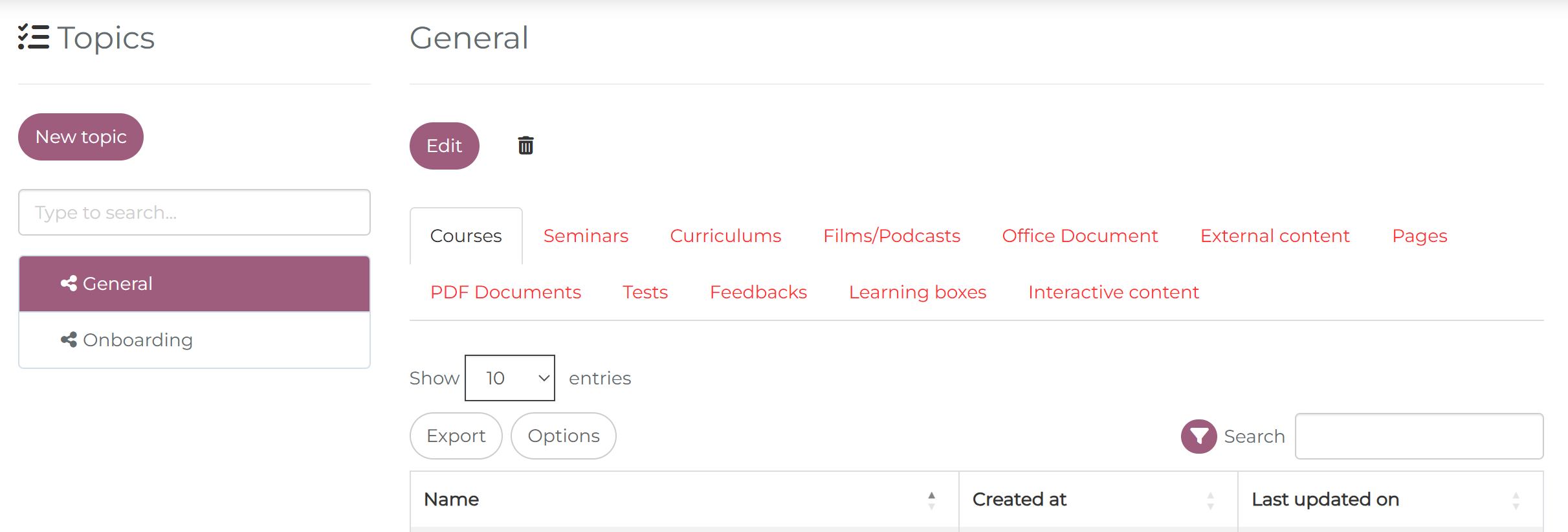
3. Main text color: This refers to the color of the following settings tabs (red in screenshots):
- Under Administration > Settings > Configuration:
- Under Administration > Users > Groups:
- Under Administration > Topics:
- Under Administration > Content > Courses / Tests / Feedback etc.:
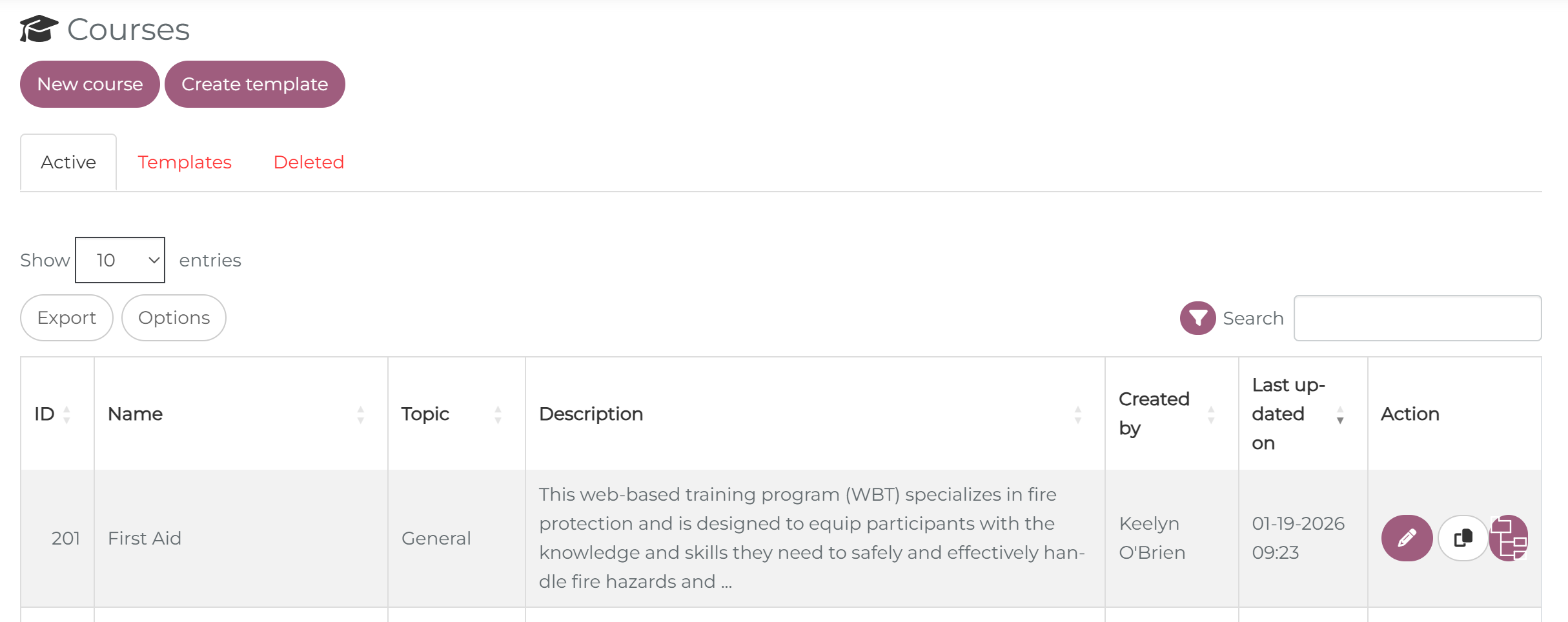
4. Header color: This refers to the color of the header (red in the screenshot):

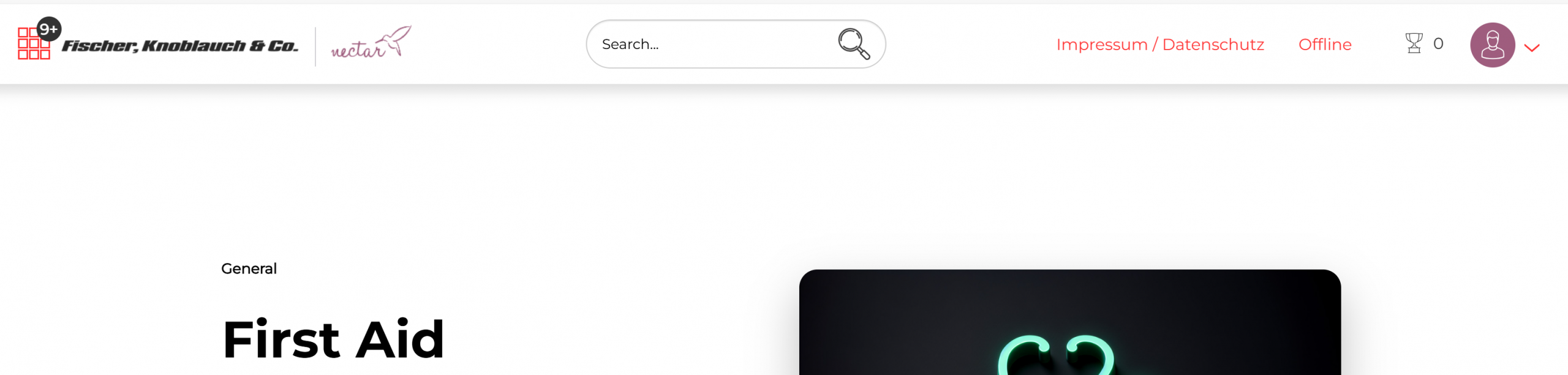
5. Header color text: This refers to the color of the text and symbols within the header (red in screenshots):
- in learners’ view:
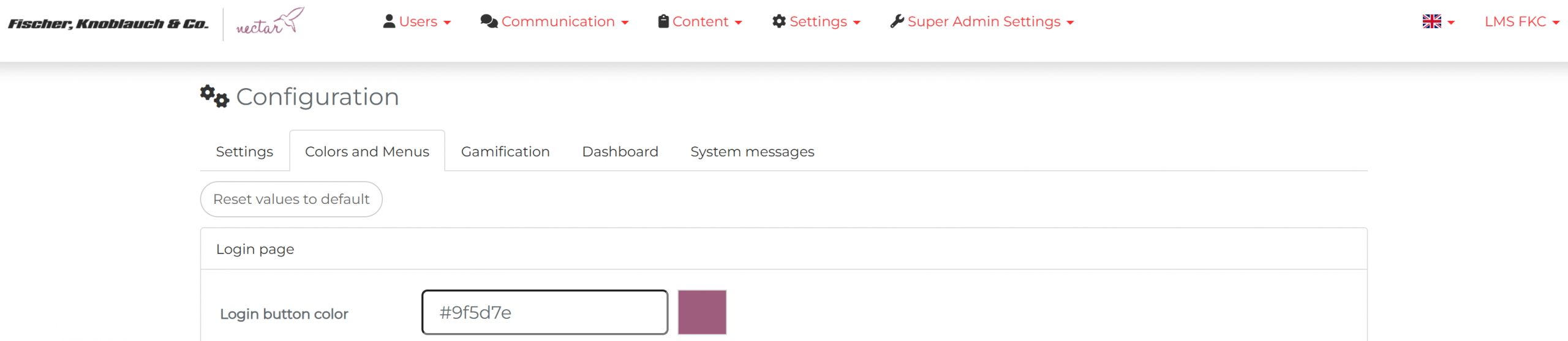
- in administration area:
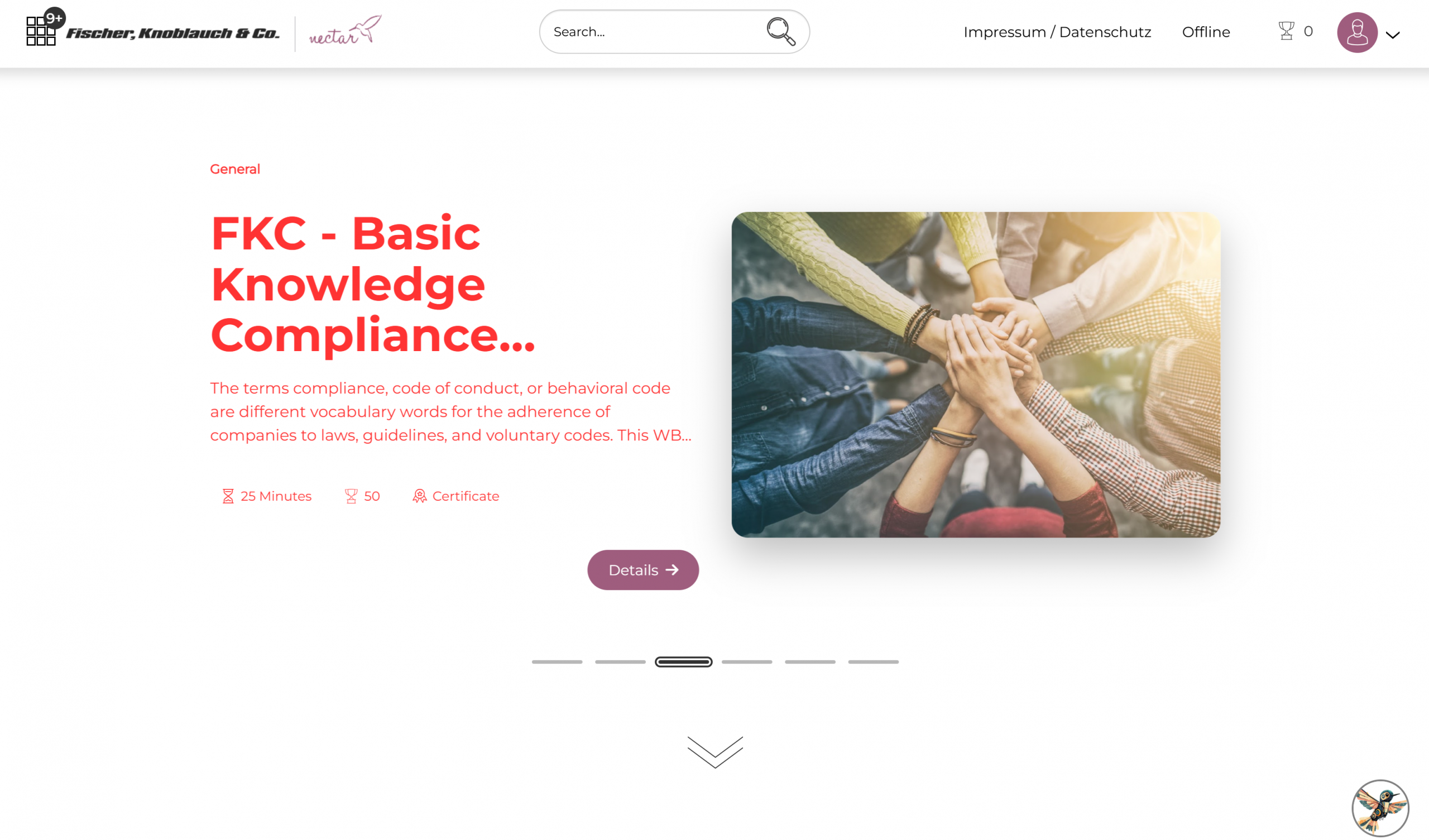
6. Header slider text color: This refers to the color of the text and symbols within the slider (red in screenshots):
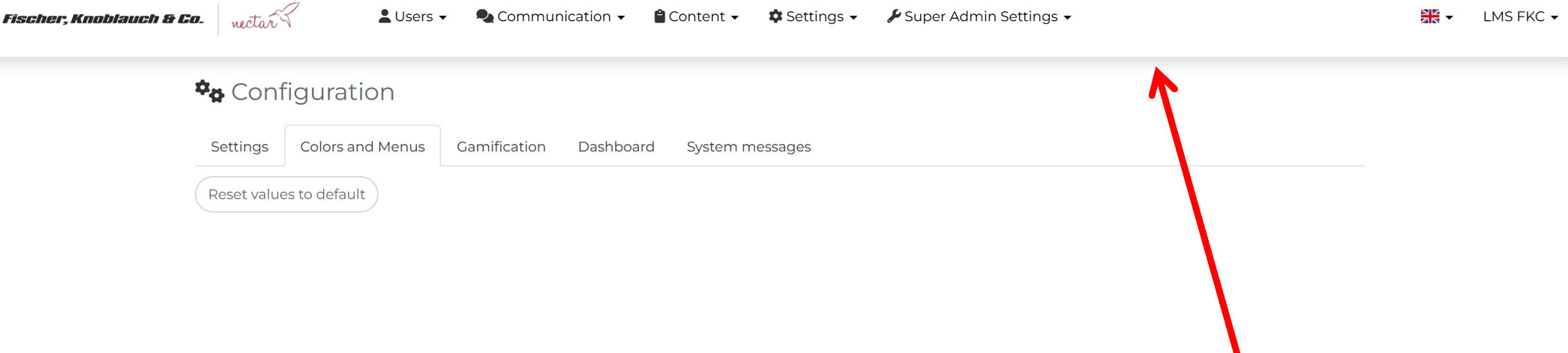
7. Header shadow: This refers to the shadow under the header (red arrow in the screenshot):
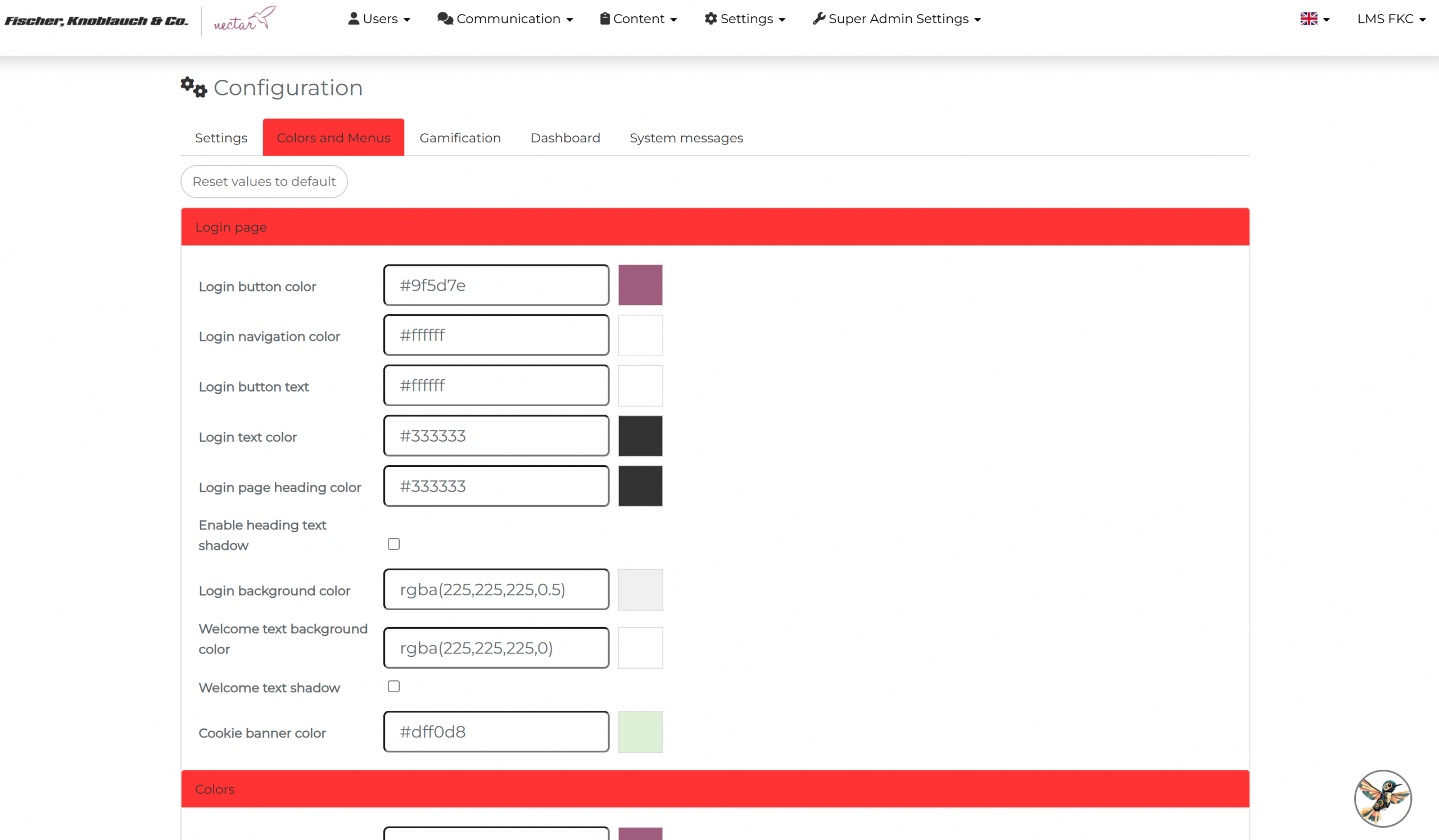
8. Table headings color: This refers to the color of the table headers. An example is shown highlighted in red in the following screenshot. Other locations in the nectar LMS where this setting affects the header color include: in the learner area under profile and in the administration area, including under Administration > Users > Users, Groups, in the respective statistics, under Administration > Content > Courses, Tests, etc.
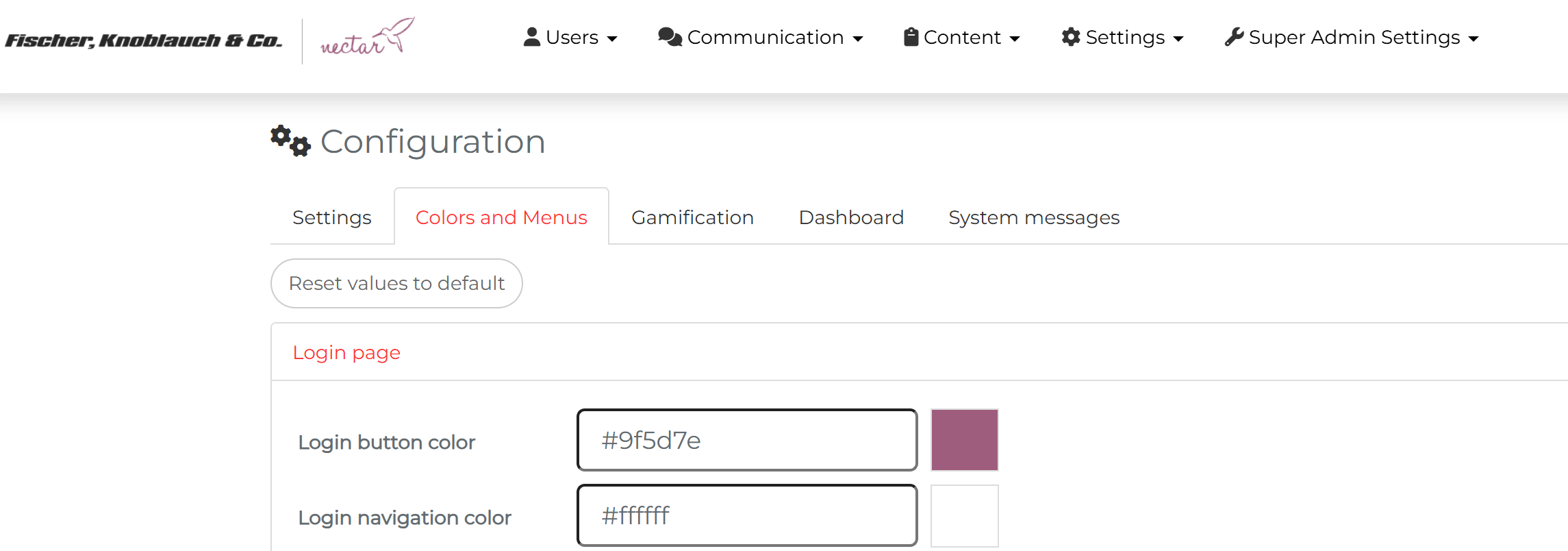
9. Table header text color: This refers the color of the text within the table for the selected tab (red in the screenshot). Similar to setting 8, this color setting also affects all table header text.
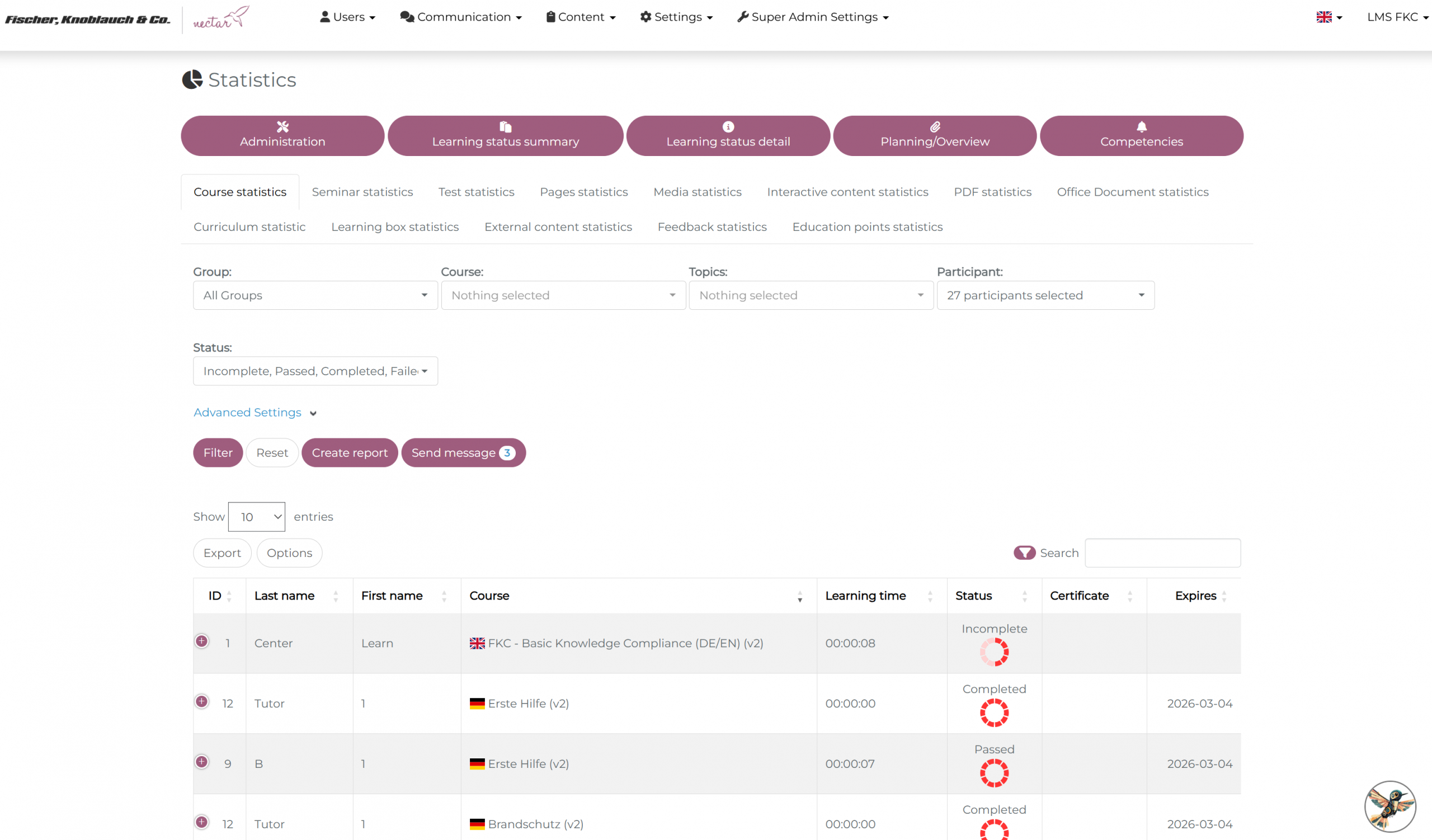
10. Status color: This refers to the learning status color in the statistics tables (red in the screenshot). This color affects the status of all learning status detail statistics (e.g., course/seminar/test statistics, etc.).
11. Marker overdue mandatory unit: This refers to the color of the warning symbol for the overdue learning unit (red in the screenshot):
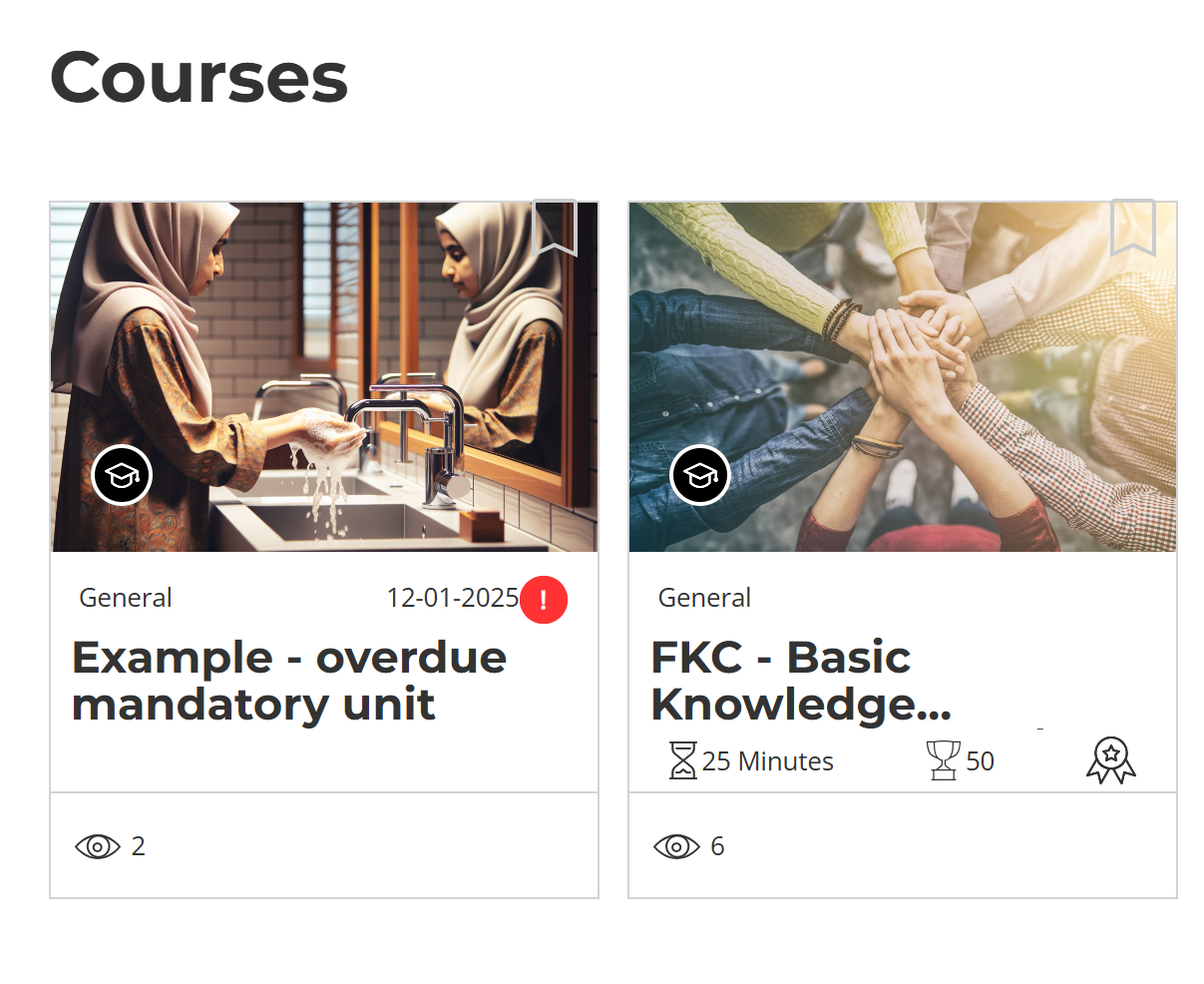
12. Learning units background color: This refers to the color of the learning unit tile (yellow in the screenshot):
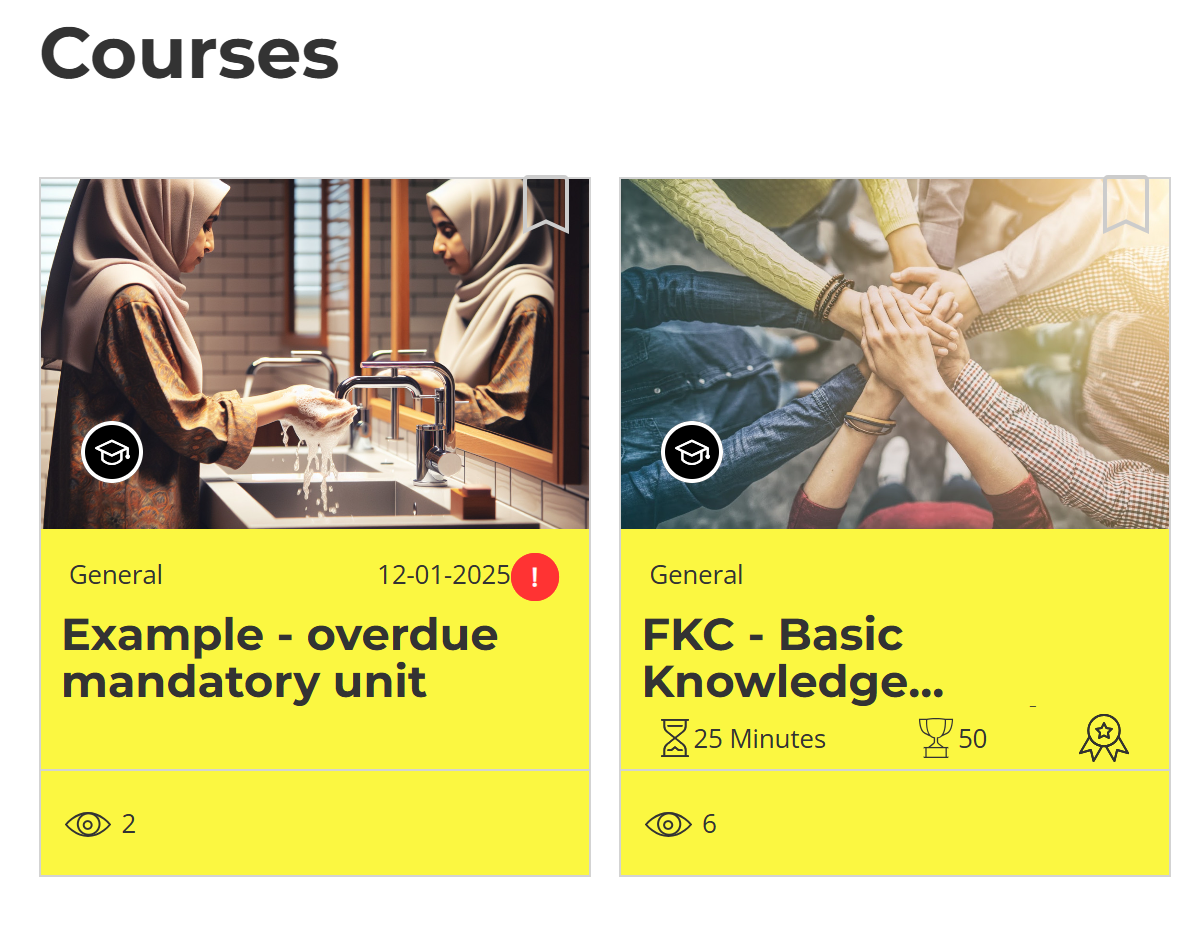
13. Notification success color: This refers to the color of the system message displayed when a change or instruction has been successfully executed. The color is set to green in the system settings, and the system message appears for a few seconds in the lower right corner of your window.
14. Notification info color: This refers to the light blue color of notifications containing information—as shown in the following screenshot, where no SCORM file has been uploaded:
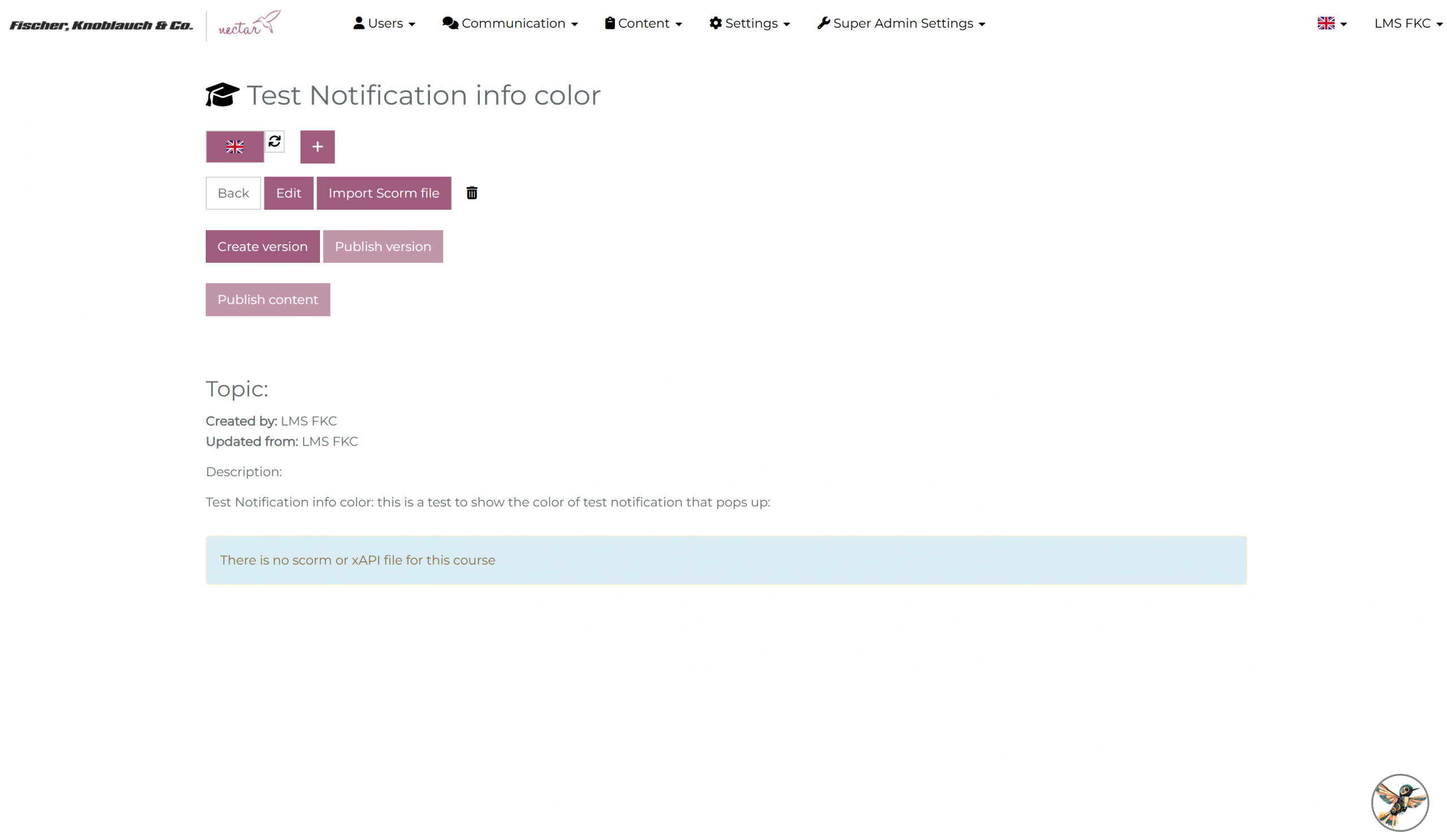
15. Notification alert color: This refers to the bright red color of notifications indicating an unsuccessful system message, for example when an incorrect password was entered.
16. Basic icon’s color: This refers to the color of the base icons throughout the system. An example using red is shown in the following screenshot:
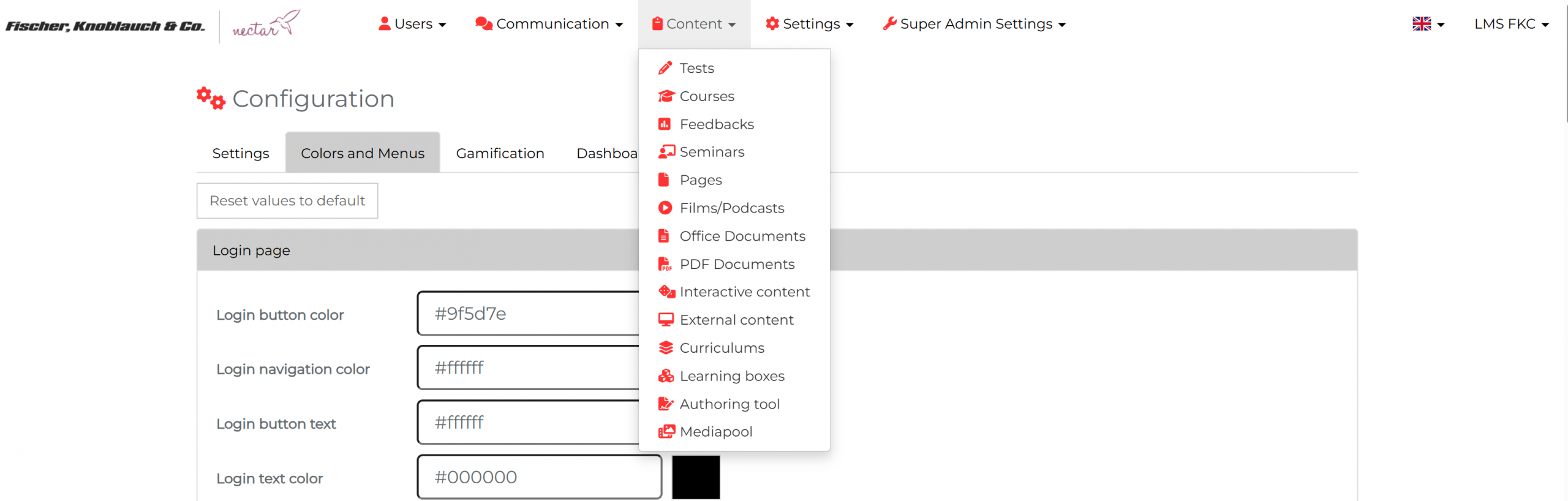
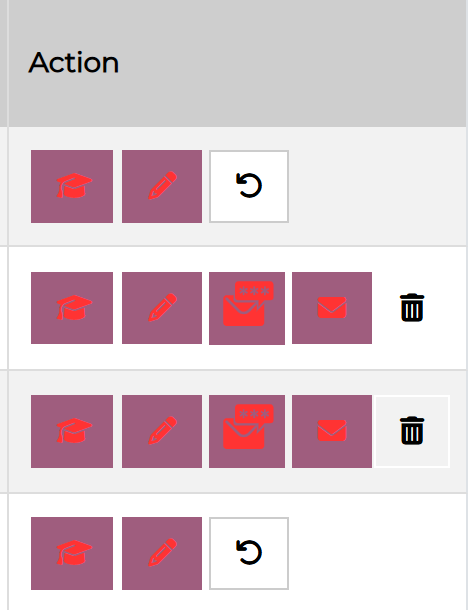
17. Button icon’s color: This refers the color of the basic icons throughout the system. An example using red is shown in the following screenshot from the user view under Administration > Users > Users:
18. Color for SVG icons: This refers to the color of the appointment icons (red in the screenshot):
Please clear your browser data/cache if you change this color.
In the learner dashboard:
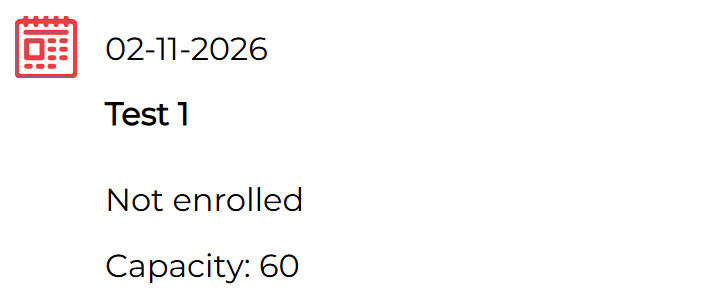
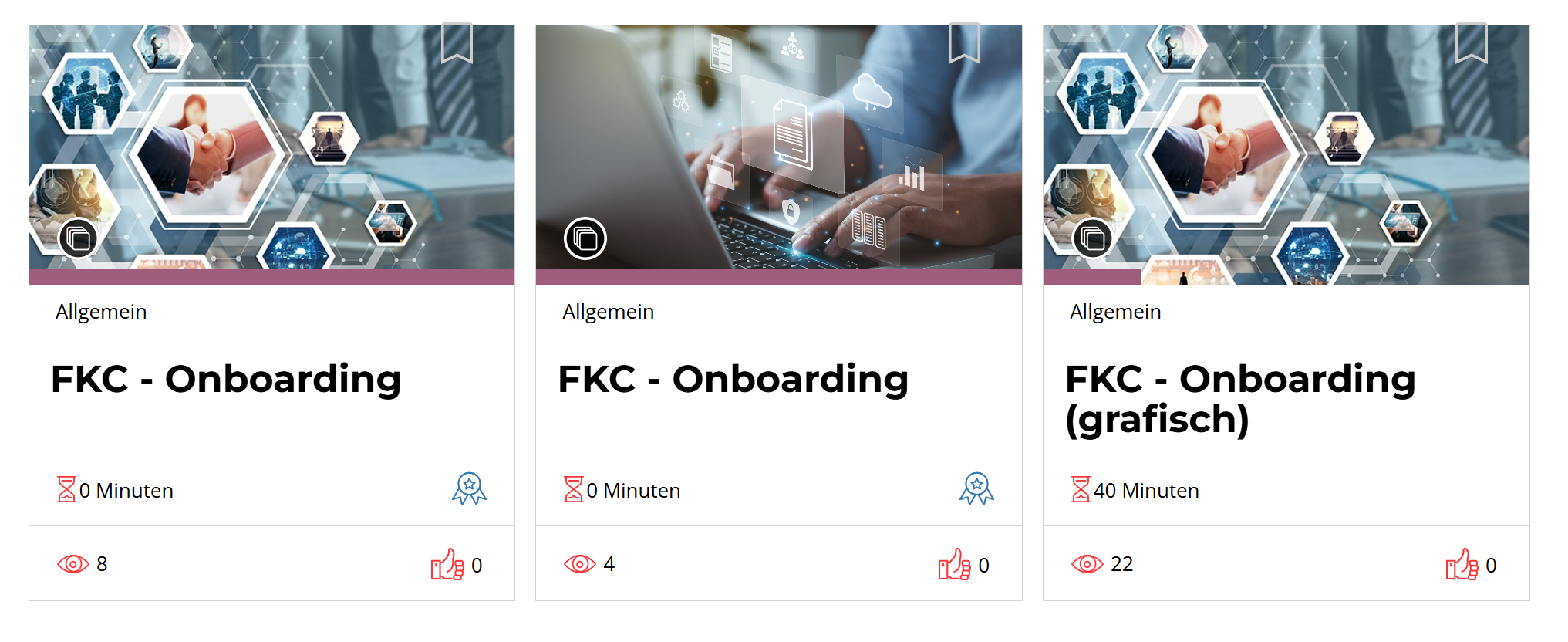
In the course overview, under the individual tiles:
And in the learner view the points icon:
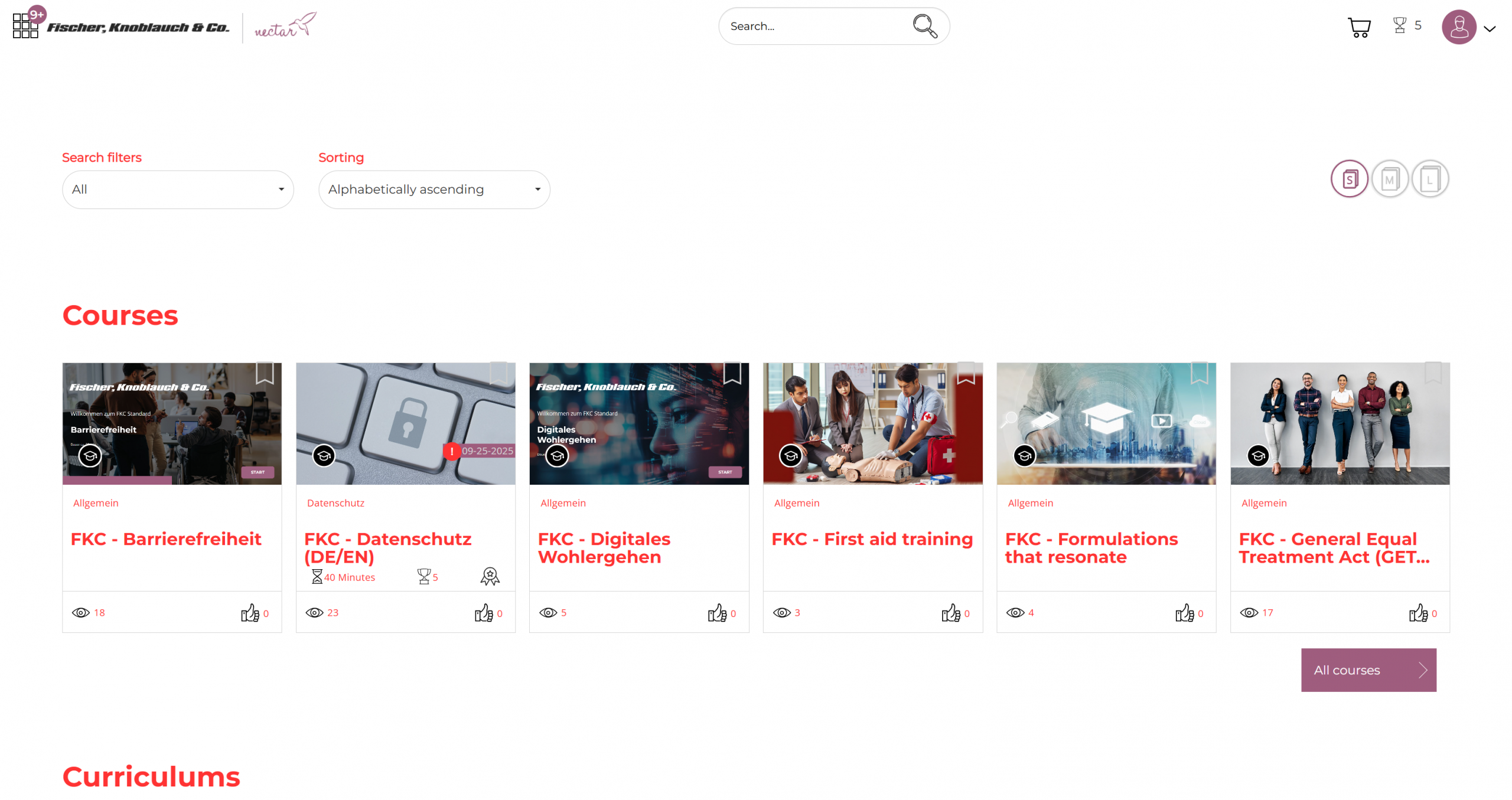
19. Frontend text color: This refers to the color of the text in the learner view, such as the titles of the learning units and the dashboard (red in the screenshot):
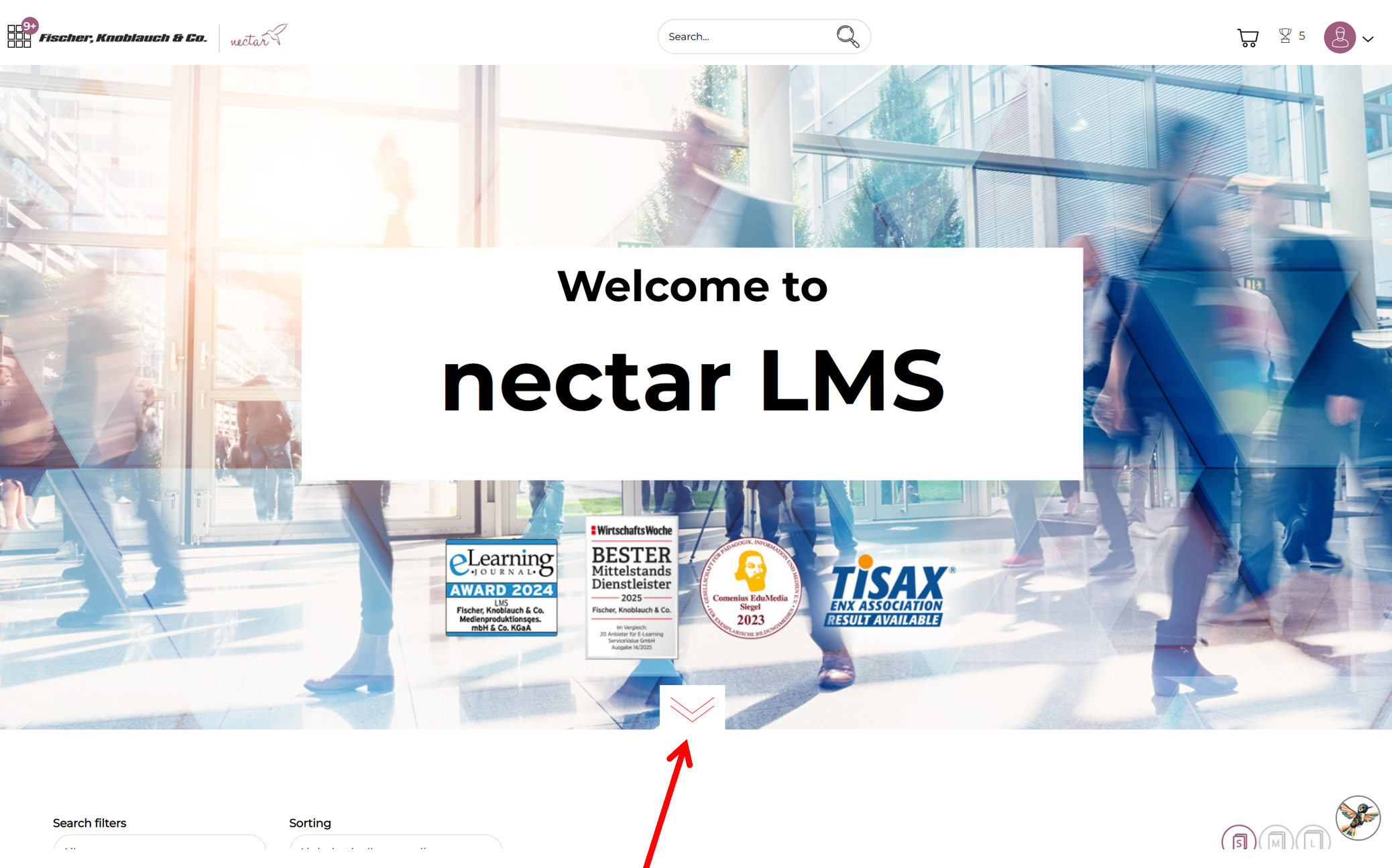
20. Double arrow color: This refers to the color of the double arrow on the homepage, used to scroll down and view the learning elements (red in the screenshot):
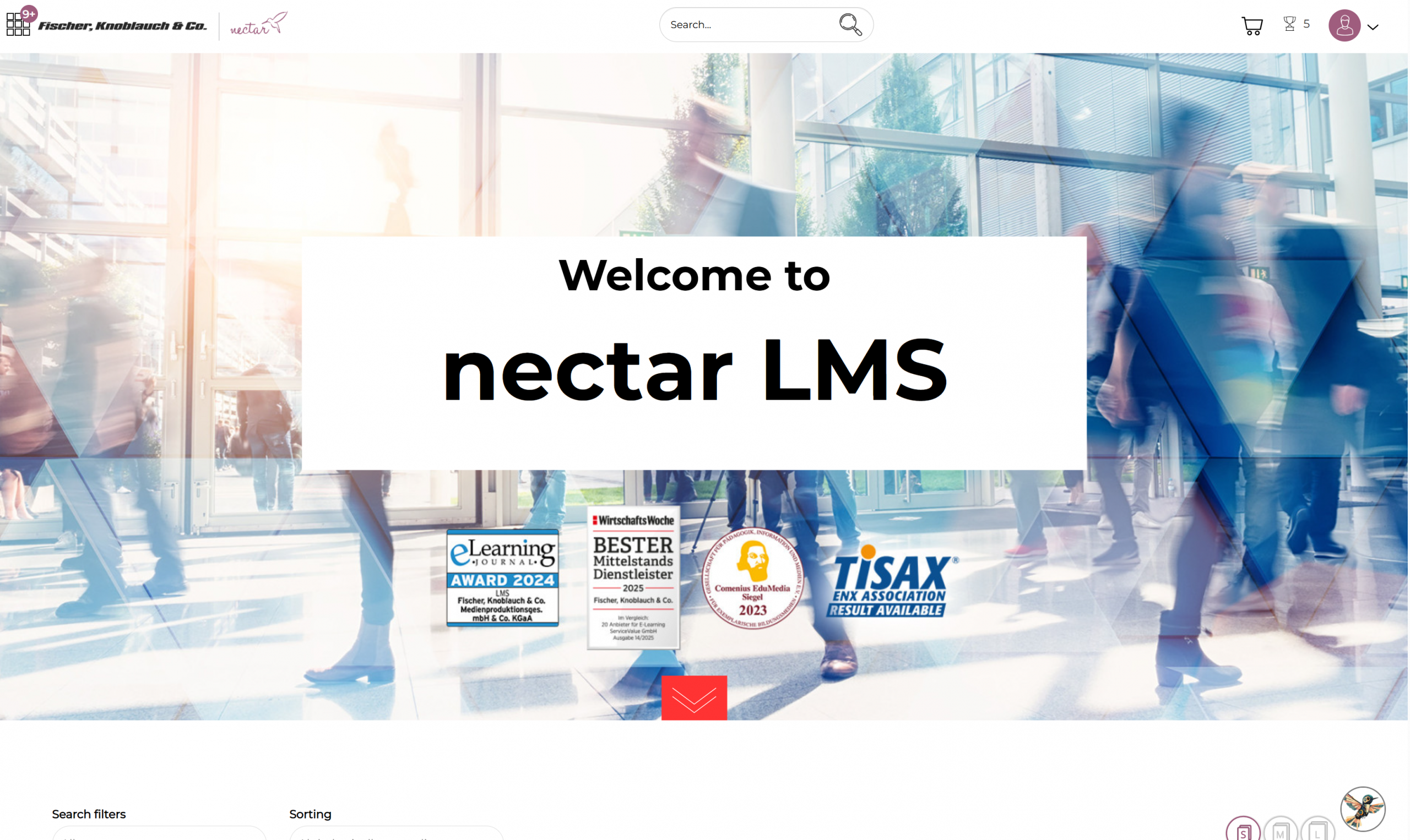
21. Double arrow background: This concerns the background color of the double arrow on the homepage (red in the screenshot):
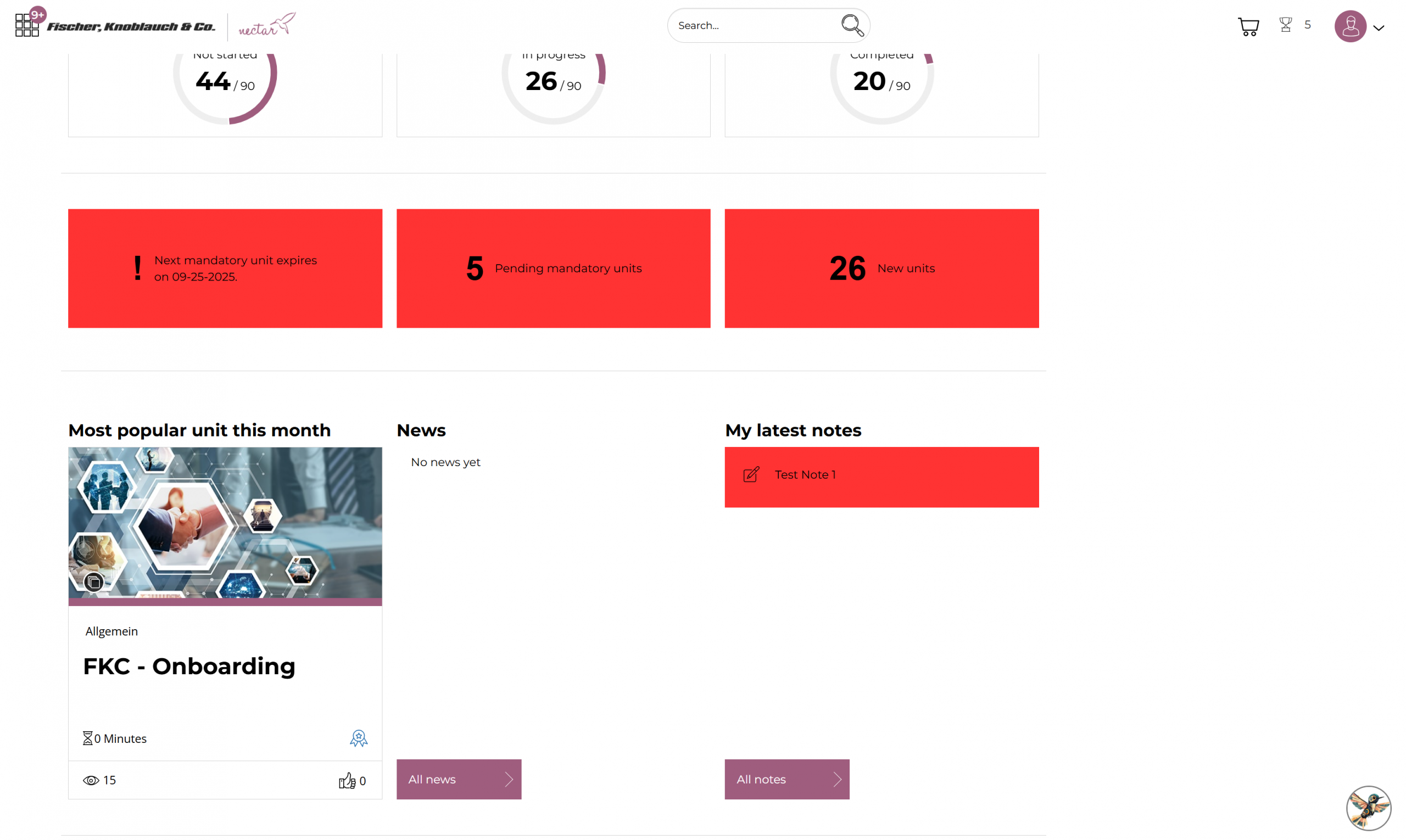
22. Dashboard tiles color: This refers to the background color of the dashboard tiles for notes and current notifications about mandatory and new units (red in the screenshot):
23. Icon color for user with uploaded profile image & 24. Icon color for user with no profile image: These two settings concern the color of the icons for participants in a meeting. The following screenshot shows the icons for users without an uploaded profile picture in black and the icons for users with an uploaded profile picture in red:
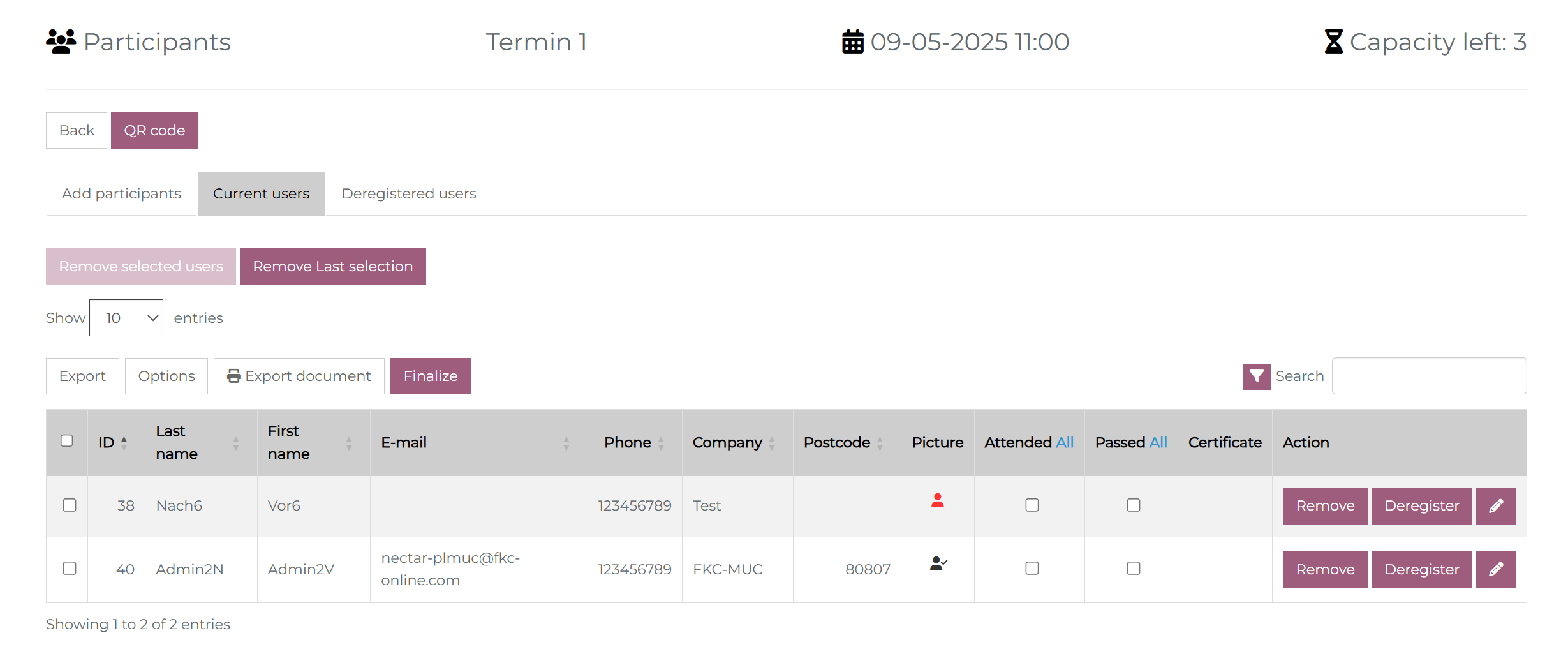
25. Icon color for certificate download & 26. Icon color for card certificate download: These settings concern the color of the certificate symbol and the certificate card symbol in the statistics results. As shown in the following screenshot from a course statistics detail; the certificate is here black and the card certificate symbol red:

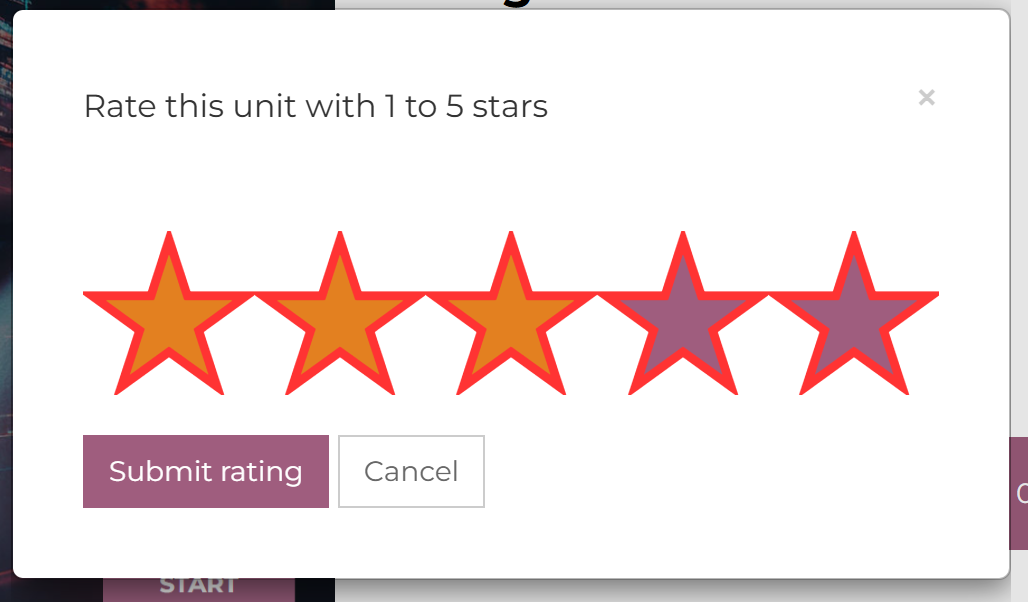
27. Star outline color: This refers the color of the star outline when evaluating a learning unit (red in the screenshot); 28. Star background color: This refers to the color of the star background when evaluating a learning unit – before clicking on the stars (bourdeaux in the screenshot); 29. Star filled color: This refers to the color of the star’s interior when evaluating a learning unit (orange in the screenshot):
30. Width of the tile border & 31. Color of the tile border: These refer to the width and color of the tile border in the learner view (red in the screenshot):
32. Width of the outline of the focused element & 33. Color of the outline of the focused element: These refer to the color and width of selected elements or buttons when maximum accessibility is enabled. For example, if you press print, a border like the one shown in the following screenshot will appear, using red:
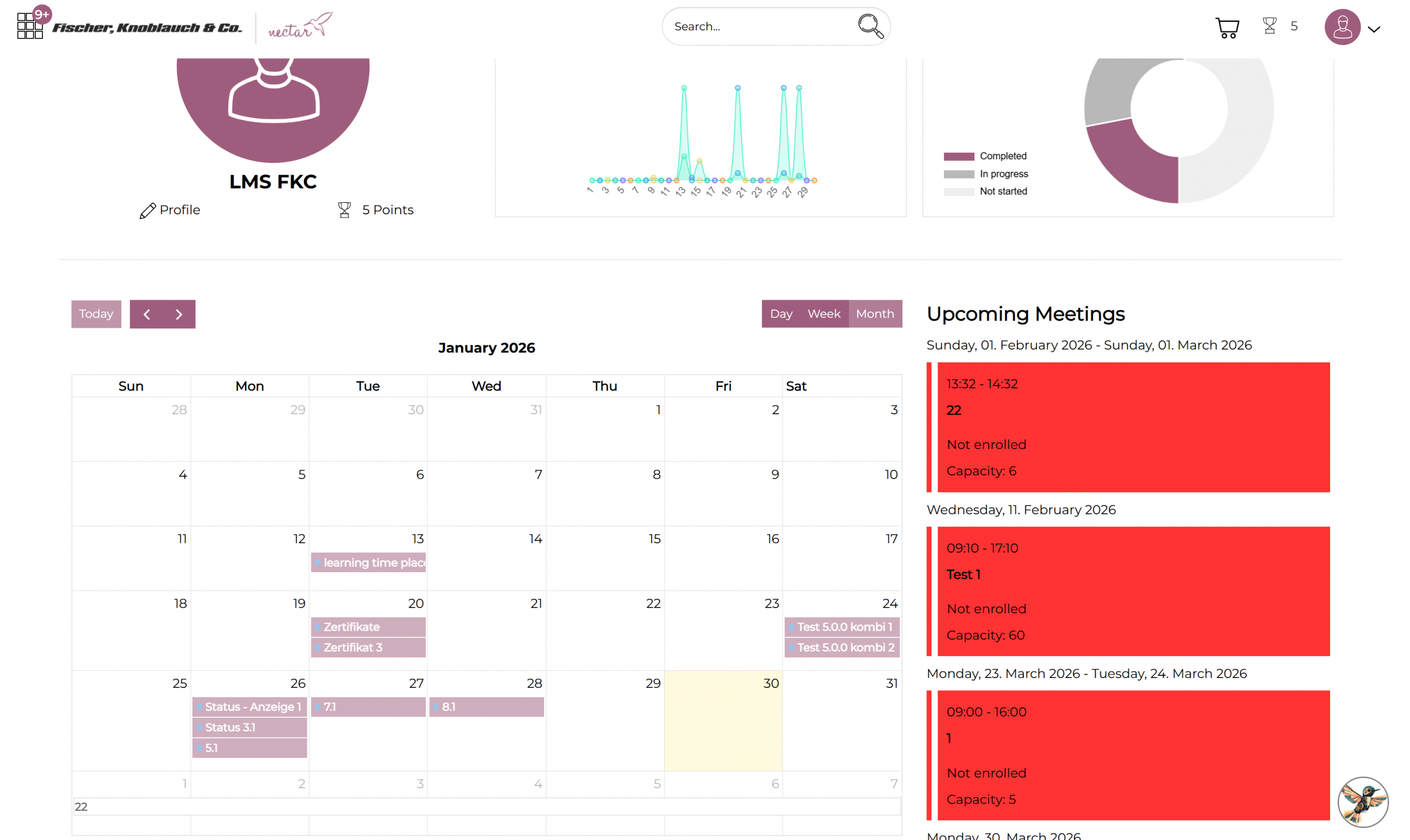
34. List of calendar entries color: This refers to the color of upcoming appointments in the learner view (red in the screenshot):
35. Instructor calendar event color: This refers to the color of appointments in the instructor dashboard for which the user is assigned as an instructor. The instructor dashboard must be activated for this to work under the respective group settings.