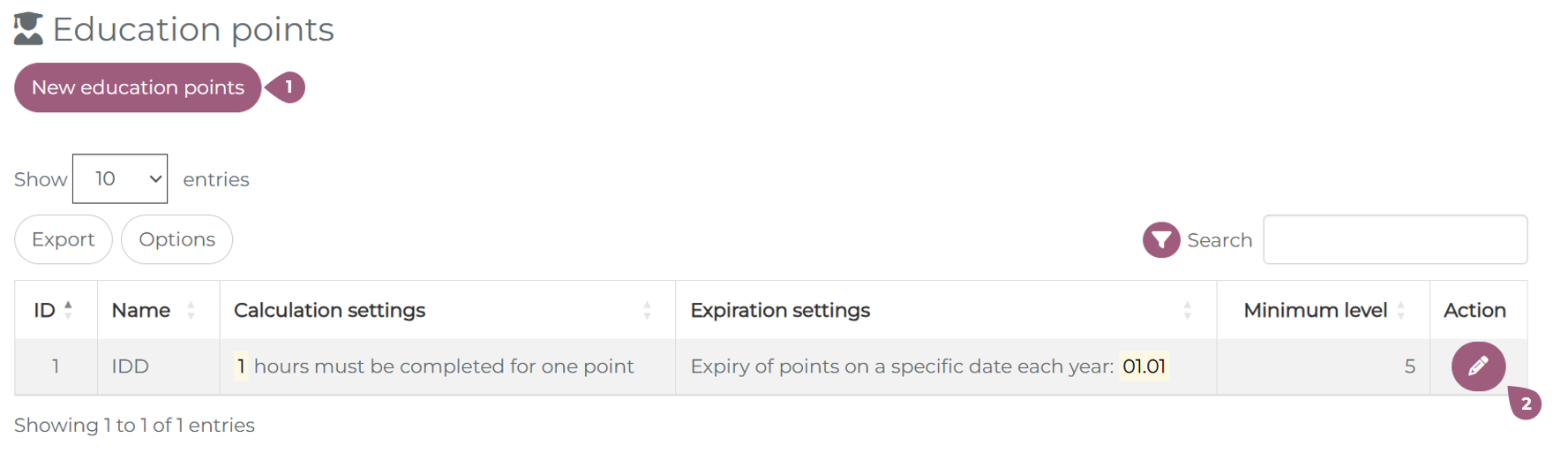
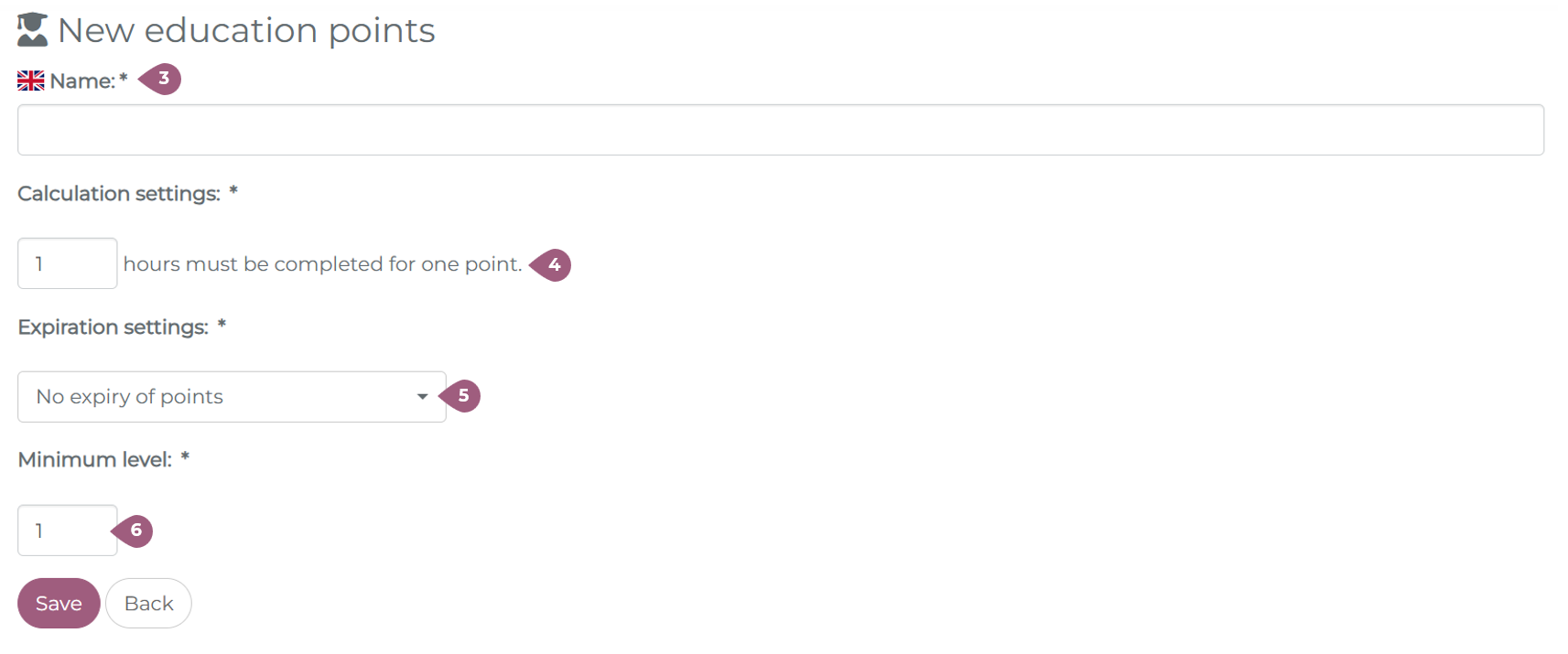
Unlike gamification points, which are based on learning progress, education points are calculated based on the time a user spends within a learning unit. Education points can be activated under Super Admin Settings > System Configuration > Education Points. After activation, a new tab called Education Points appears under Super Admin Settings. Here, you can see the overview table for all education points in the LMS. With a click on “New education points”, you can create more types of points. In the overview table, you can edit points using the pencil icon (3) or delete points using the trash icon (not pictured). Important: Before education points can be deleted from the LMS, they must first be removed from all individual users. When creating new education points, the following four fields must be completed: The calculation setting determines how many learning-time hours a user must complete to earn one point. The expiration settings determine when the education points, if at all.There are three available expiration options (6): If “Manual reset of points” is selected, a “Reset” button appears next to the drop-down menu. Clicking this button marks all education points for all users as expired. If “Automatic expiration on a specified date” is selected, an expiration date must be defined. All education points awarded in the LMS up to that date will expire on the selected date — regardless of when they were originally earned. The Minimum level defines the minimum number of education points a user must achieve to complete their mandatory point goal (7). Click “Save” to activate the selected settings. Within the settings of each learning element, a learning time can be specified (9). To calculate education points that can be earned by completing this learning unit, you must select the corresponding education point type from the drop-down menu (10). The calculated number of points is displayed automatically (11). Points are calculated according to the rules defined under Education Points settings. The calculated value can also be manually adjusted — both higher and lower values are possible. Note: If a minimum completion time is required, the user must spend at least the defined amount of time in the learning unit to receive the points. The awarded education points (12) are displayed directly next to the gamification points. Education points can be assigned to the following learning elements: Education points are displayed in the “Education Points” tab (13) within the user profile. The number of valid points is shown at the top (14). The “Add mandatory training points” button (15) determines which points are displayed in the progress graphic (16). When the circle graphic is fully filled, the minimum level has been reached. From the user profile, education points can be: Note: Once the education points for a learning element have expired no additional points can be earned from that element and existing points cannot be edited. To allow users to earn points again, an administrator must delete the existing points and reset the learning progress. Statistics for education points can be accessed under: Within the statistics view, points can also be:Education Points: Settings
Creating Education Points
Learning Units
Education Points in the User Profile
Education Points Statistics