Glossary
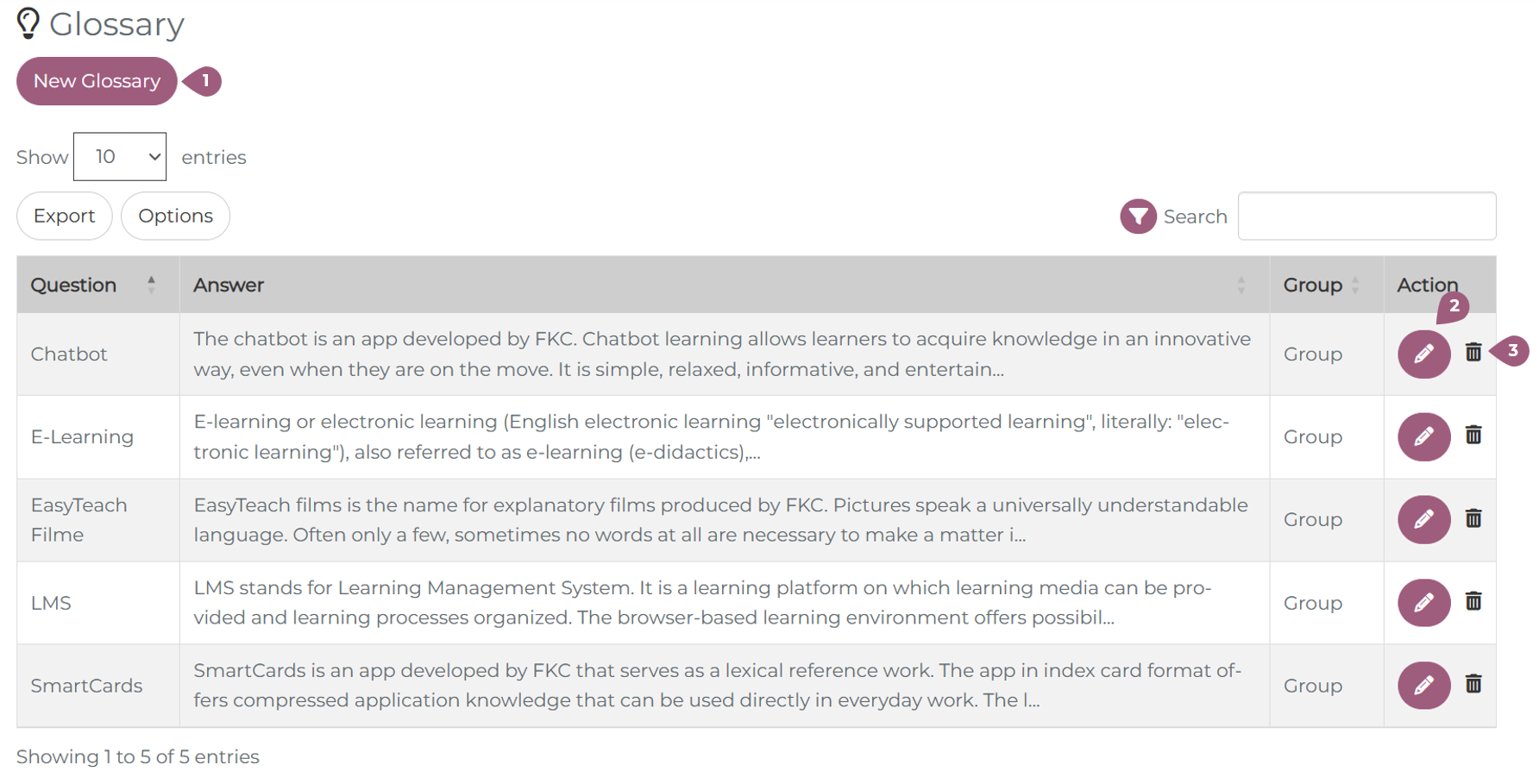
Under Administration > Communication > Glossary/FAQ, it is possible to set up at Glossary or FAQ section. Learners can access their glossary on a tile on the main menu. New glossary items or FAQs can be created by clicking on “New Glossary” (1). In the overview table, all glossary entries with their question, answer, and group visibility are shown. Each glossary entry can be edited (2) or deleted (3).
When a glossary entry is edited, the changes will be immediately visible for learners in the LMS. When a glossary entry is deleted, it will also be deleted for all learners.
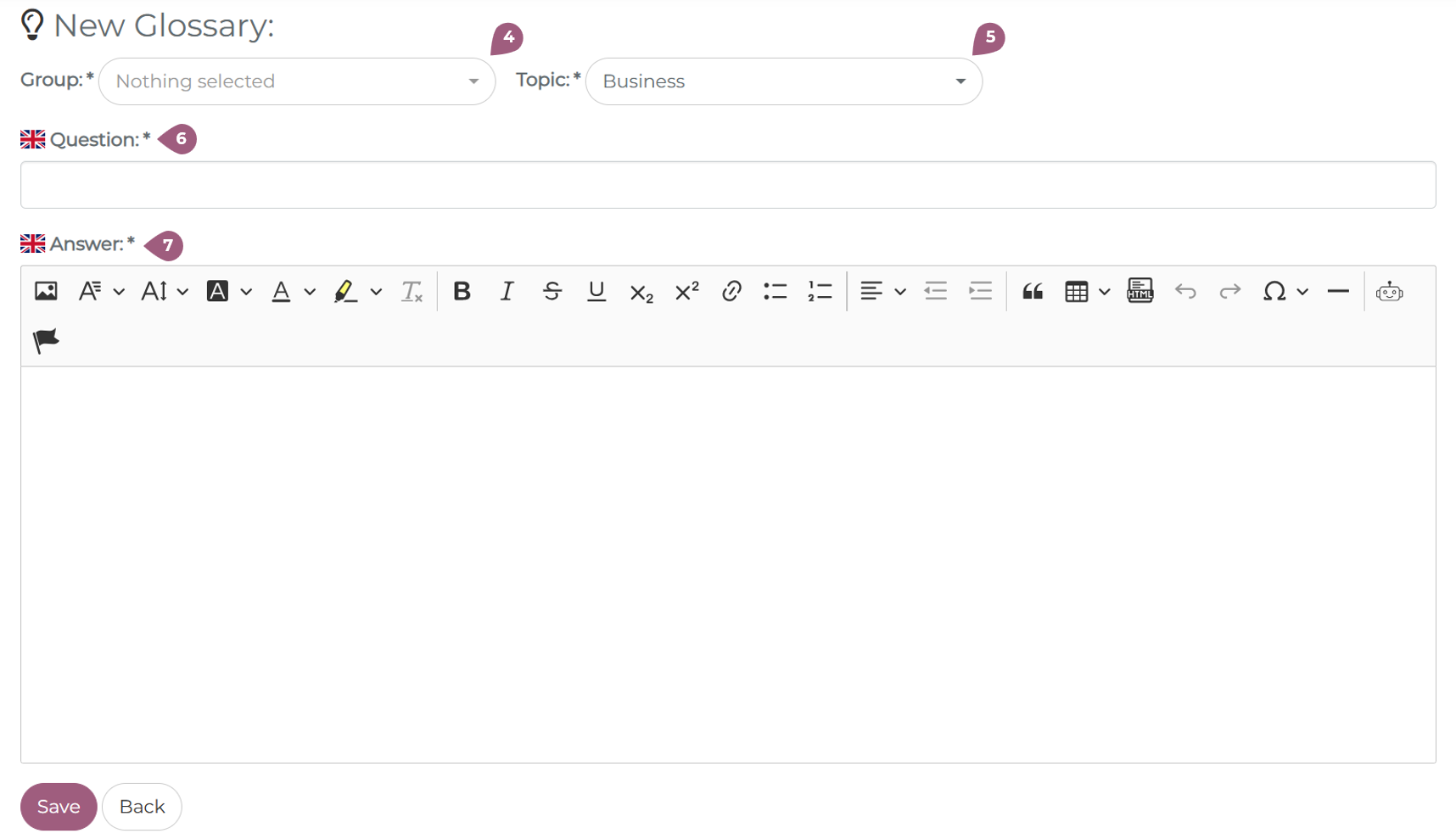
When a glossary entry is created, a group must be selected (4). Once a user has access to a glossary entry over one group, it will always be shown in the glossary tile, even if it is not assigned to other groups for the user. A topic must also be selected for each glossary entry (5). The topic is not visible elsewhere.
After filling out out the term or the question (6) and the definition or text (7), the entry can be published by clicking on save. It will be automatically visible.