Offline function – Installation
Installation
The offline function is available upon request and can be licensed separately if you are interested. For more information, please contact us at nectar-support@fkc-online.com.
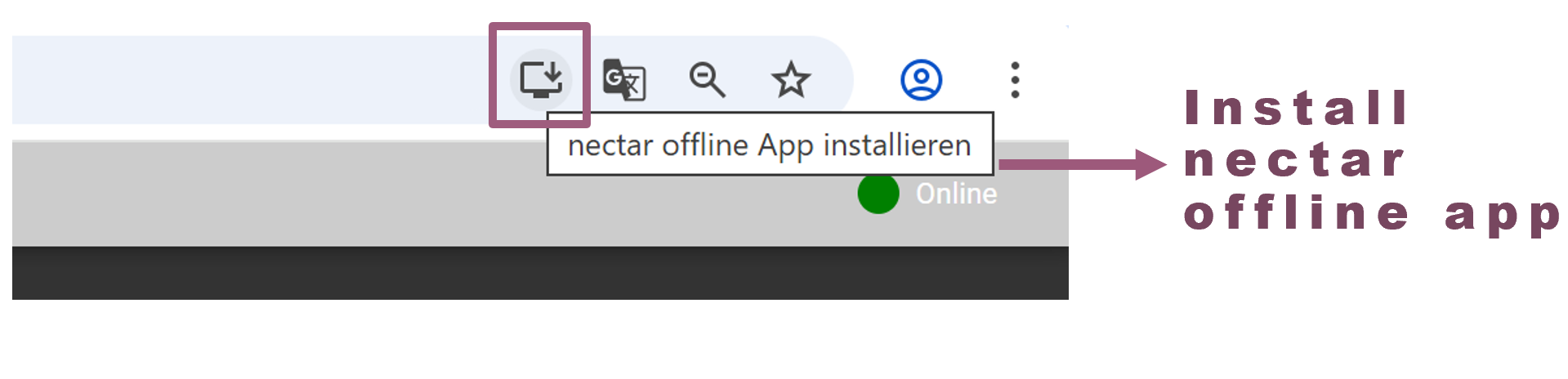
First, the PWA version must be activated for your LMS by the FKC team. Users will then receive a link to the offline version. Users must open the link with an active internet connection and install the page as an application via their browser menu. This option can be found in the browser menu of the following browsers: Microsoft Edge, Google Chrome, or Safari.
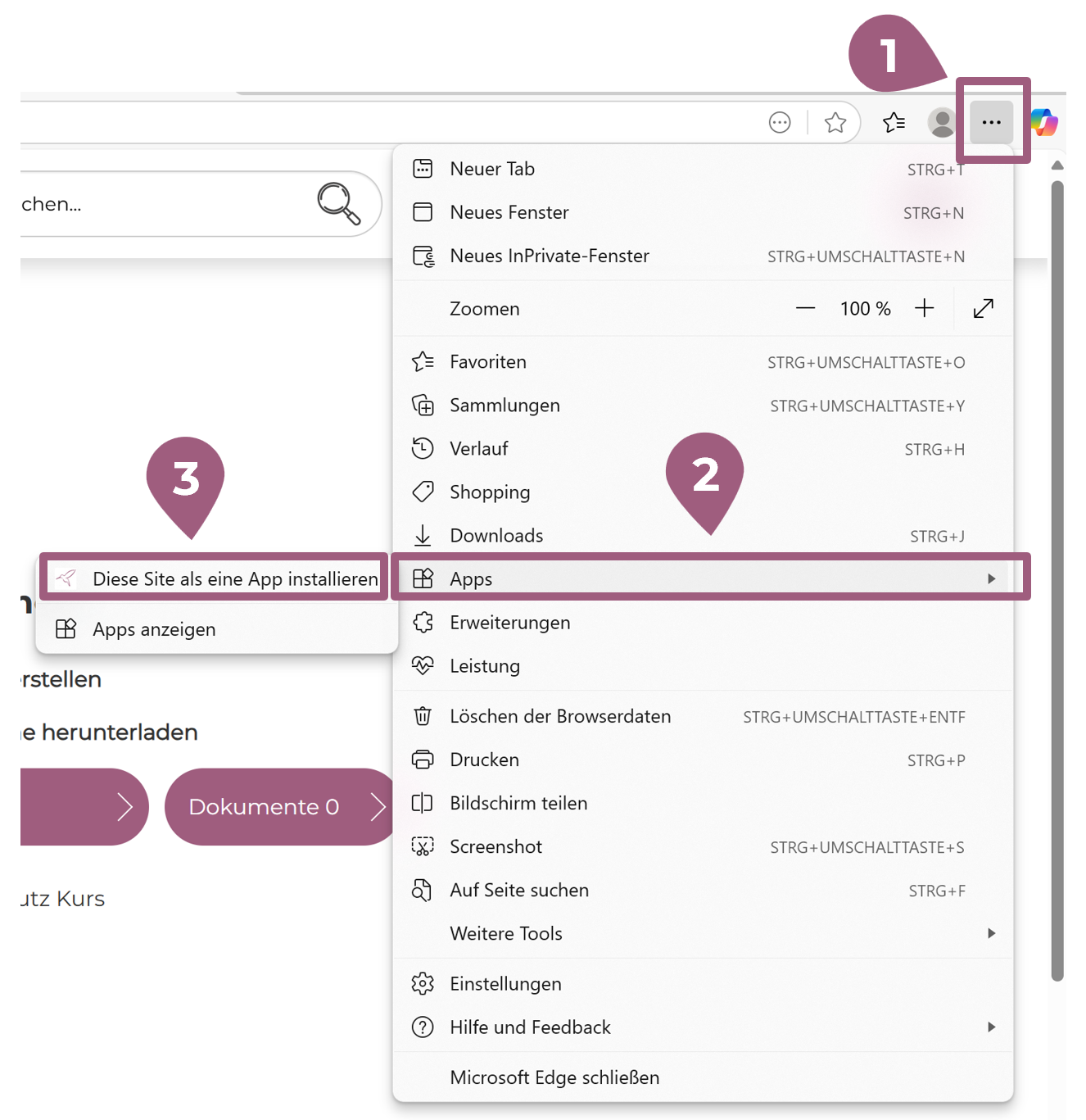
Example: Installation in the Microsoft Edge browser:
(1) Click on the three-dot menu in the upper right corner of your browser window.
(2) Select the “Apps” menu item.
(3) Click on “Install this page as an app”
Example: Installation in Google Chrome browser:
Implementation by Users
A. Download content:
While online, learners can select which courses they want to make available offline by checking the “Download offline” box in the course overview.
The actual download of the content then takes place within the PWA when it is opened with an internet connection.
B. Offline Use:
Learners can access downloaded content at any time, with or without an internet connection.
C. Synchronization Upon Reconnecting to the Internet:
Learners, who have made progress offline, will have their progress automatically synchronized with the system as soon as they reconnect.