Shared Email Accounts
Via the menu item Administration > Users > Shared Email Accounts, the message accounts of several users in the LMS can be linked together, similar to an email distribution list.
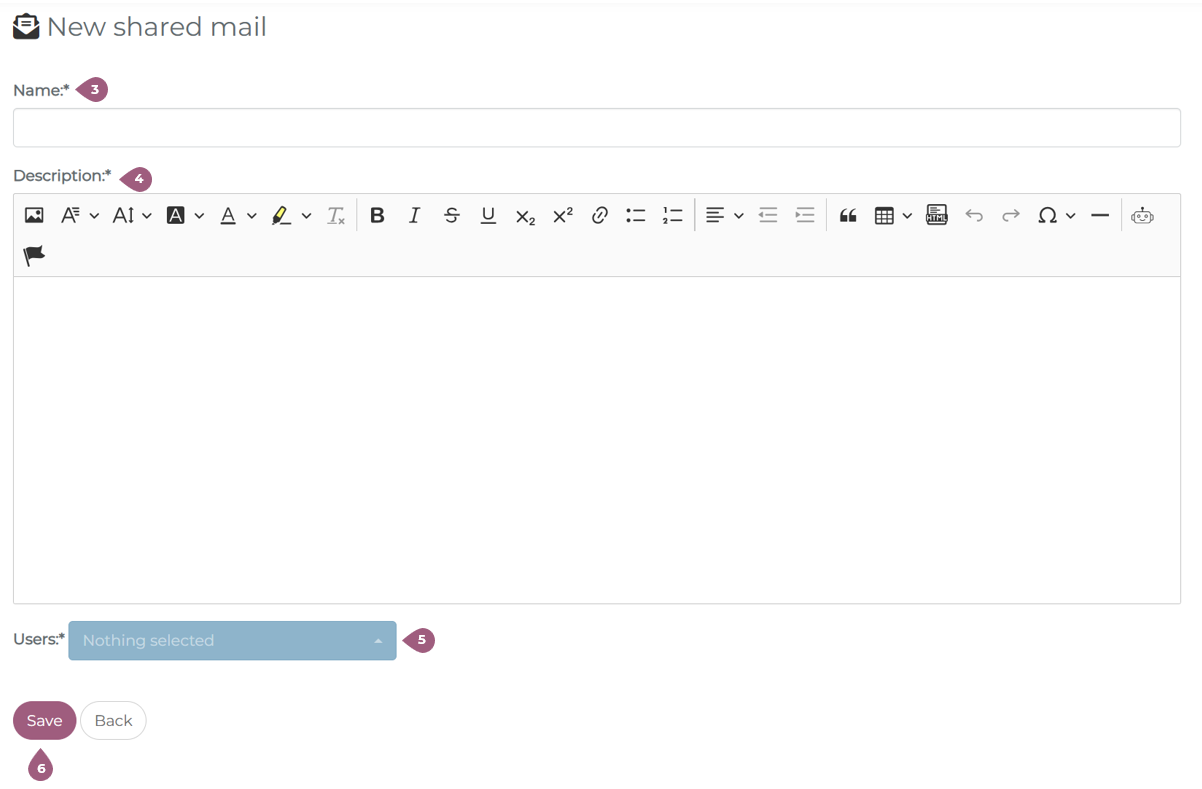
To create a new distribution list, click on the “New shared email accounts” button (1). A new view will open where you can enter the name (3) of the distribution list and a short description (4). Then use the drop-down menu to select the users you want to add to the distribution list (5). Click on “Save” to activate the distribution list (6).
As soon as one of the selected users receives a message in the LMS, it is automatically forwarded to the accounts of the other members of the distribution list. Please note that this applies to all messages in the LMS, including mandatory notifications and similar communications.
Email distribution lists are not able to be deleted.
Distribution lists can be edited and participants added or removed when you click on the pencil symbol, “Edit” (2).
