System Messages
System messages are used to inform administrators, learners, or supervisors about certain events via email or message. These are added automatically depending on the settings of the learning unit and can be further customized within the respective learning unit. It is also possible to add custom system messages to learning units, choosing both the event and the message.
Explore more key functions of system messages under:
- Creating Learning Units: System Messages
- Global System Messages
- System Message Statistics coming soon!
Under Administration > Settings > System Messages, you will find an overview of the system messages currently available in the LMS. There are two types of system messages in nectar LMS: system-generated messages and user-defined messages. System-generated messages are the automatically created messages that are linked to key events and recognizable by the creator “system” in the overview table. These are basic messages for key LMS functions and are automatically included as part of the LMS messaging function.
User-defined messages are custom messages created by administrators and superadministrators. These custom messages can then be linked to learning units, used to replace the standard message for key learning unit settings like expiring deadlines or access to mandatory units, or attached to trigger events as a global system message.
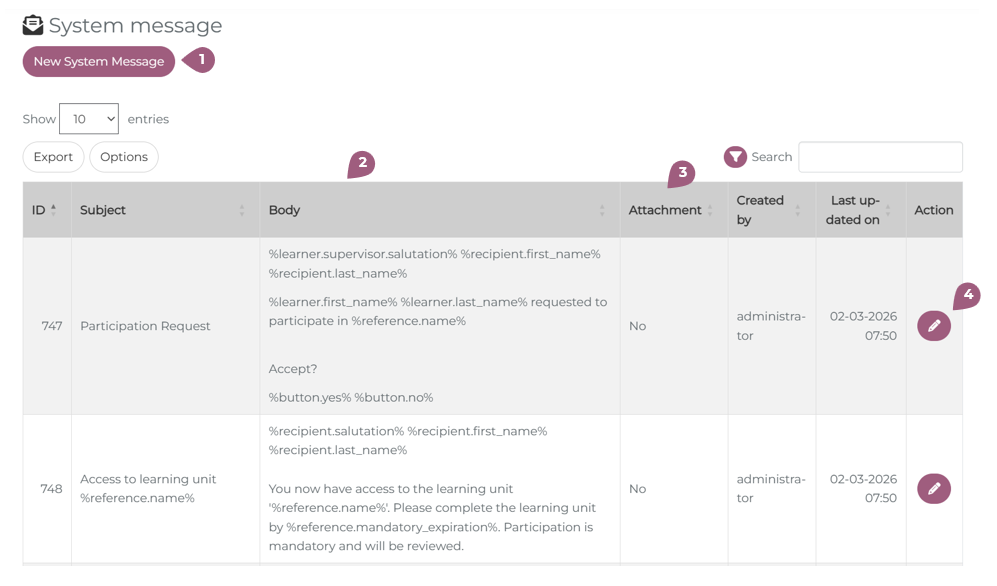
By clicking on “New System Message,” you can create new system messages in addition to the existing system-generated messages (1). The overview table shows key information about each message include the subject line of the message or email, the body, whether or not an attachment will be included (3), who created the message, and when it was last updated (2). Messages with generated attachments, like iCal Objects or certificates, will have a “yes” in the attachment column, even if there is no attachment in the message itself (3). You can use the edit icon to customize both system-generated and user-defined messages (4). In this case, the system message is changed for all learning units of the client.
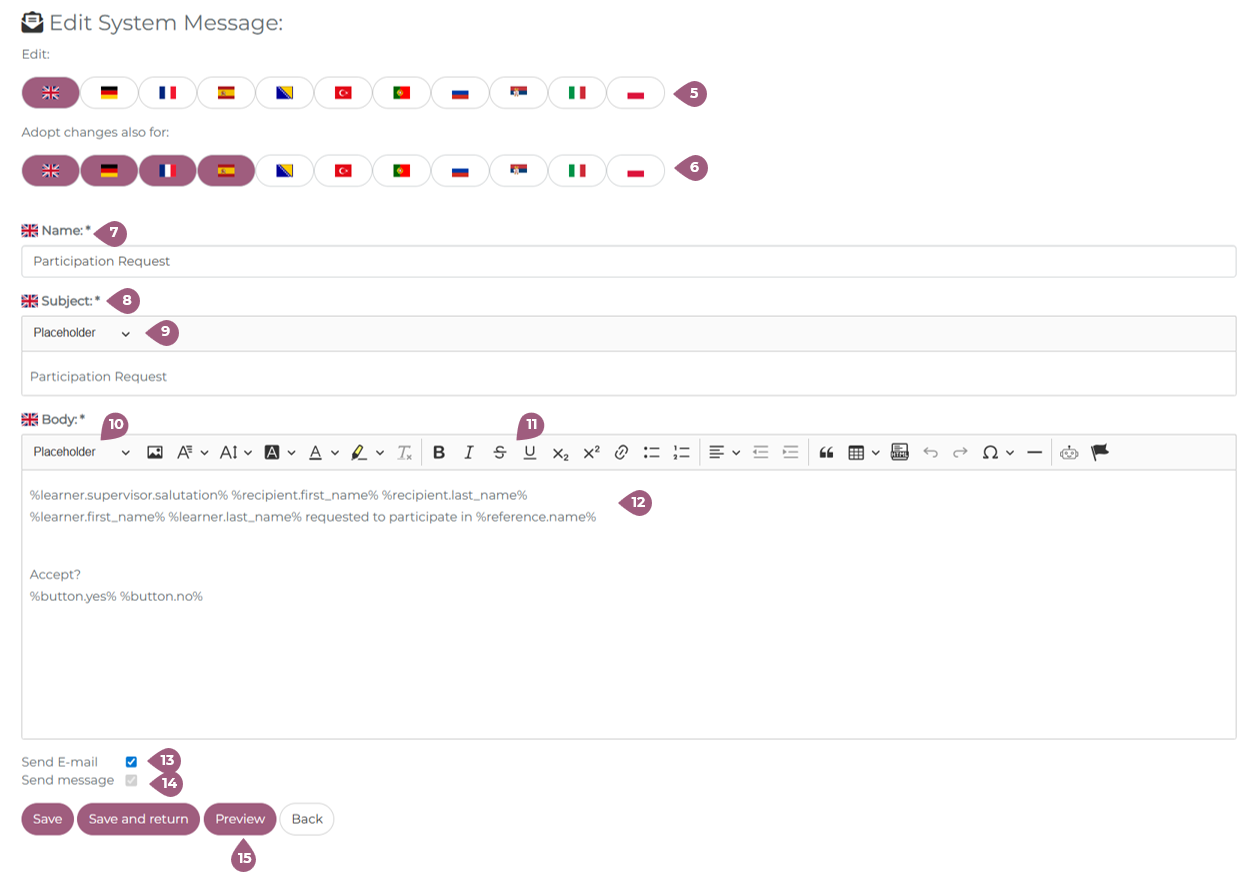
Edits to both system-generated and user-defined messages can be language specific or applied to multiple langauges (5). Likewise, the changes can be applied to some, all or only one of the active languages in the LMS (6).
When creating a user-defined, custom system message or editing system-generated messages the name (7) must be specified. You can then enter the subject (8) line of the message with the option to include placeholders (9) to automatically personalize the message with users’ names or the name of the learning unit. The body (12) of the system message can also include placeholders (10) and include various types of text and image formatting (11).
Note: You can find more detailed information about placeholders in the article on certificates coming soon!
Finally, you can use the checkbox to decide whether the system message should be sent as an email, as an LMS message, or both (13, 14).
Note: For some system messages, the E-mail option (13) cannot be deactivated because these messages are essential for the further steps. For the system messages “Register” and “Set password,” this option is always activated by the system. The reason for this is that these system messages must be sent externally from the LMS so that users receive them. Without sending these system messages as emails, the further process would not be possible for users.
Before you save the changes, you can display a preview (15). This allows you to check your message before it is sent.